Working with your assistant
Jobs
Hand over one-off, recurring and triggered work.
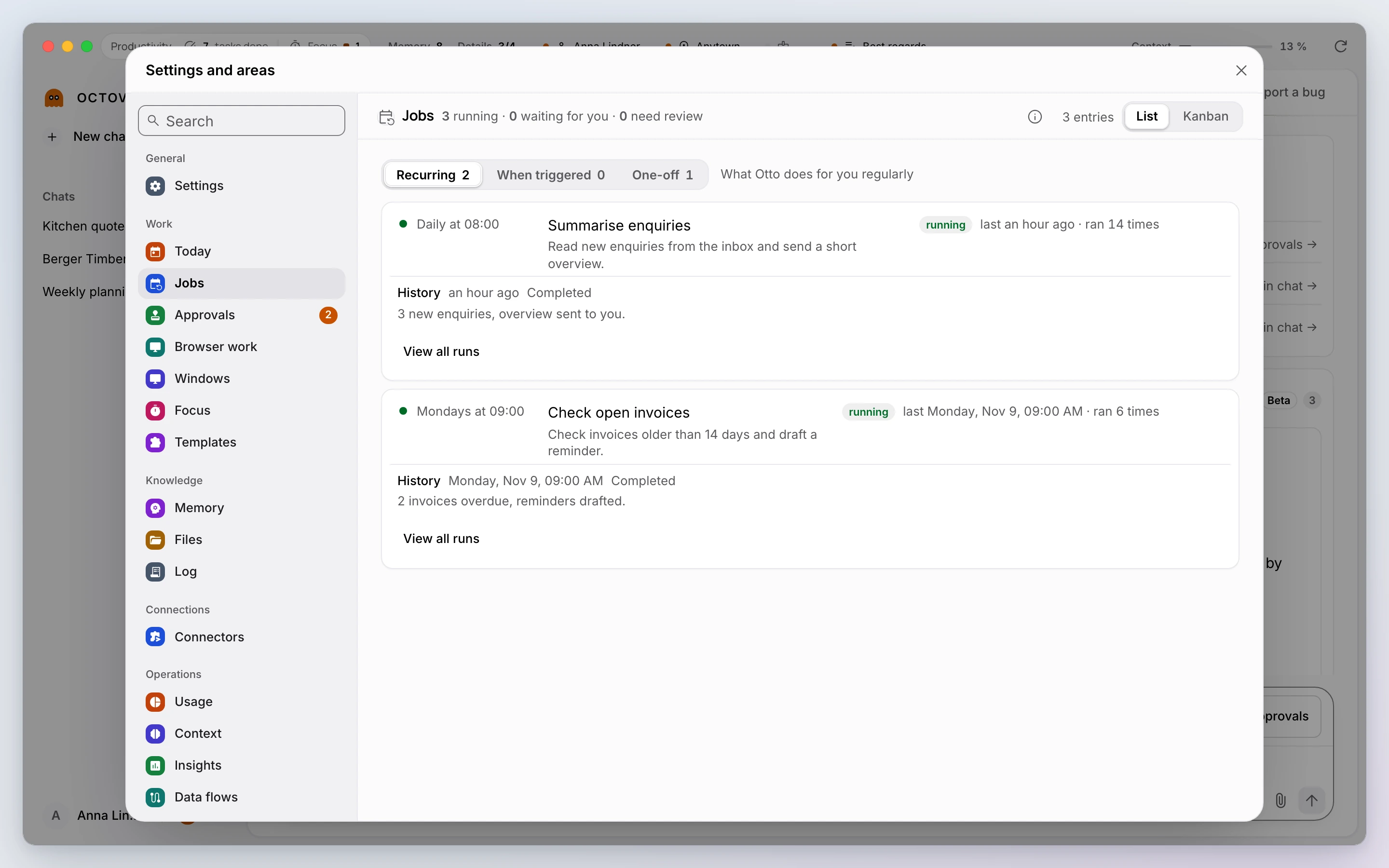
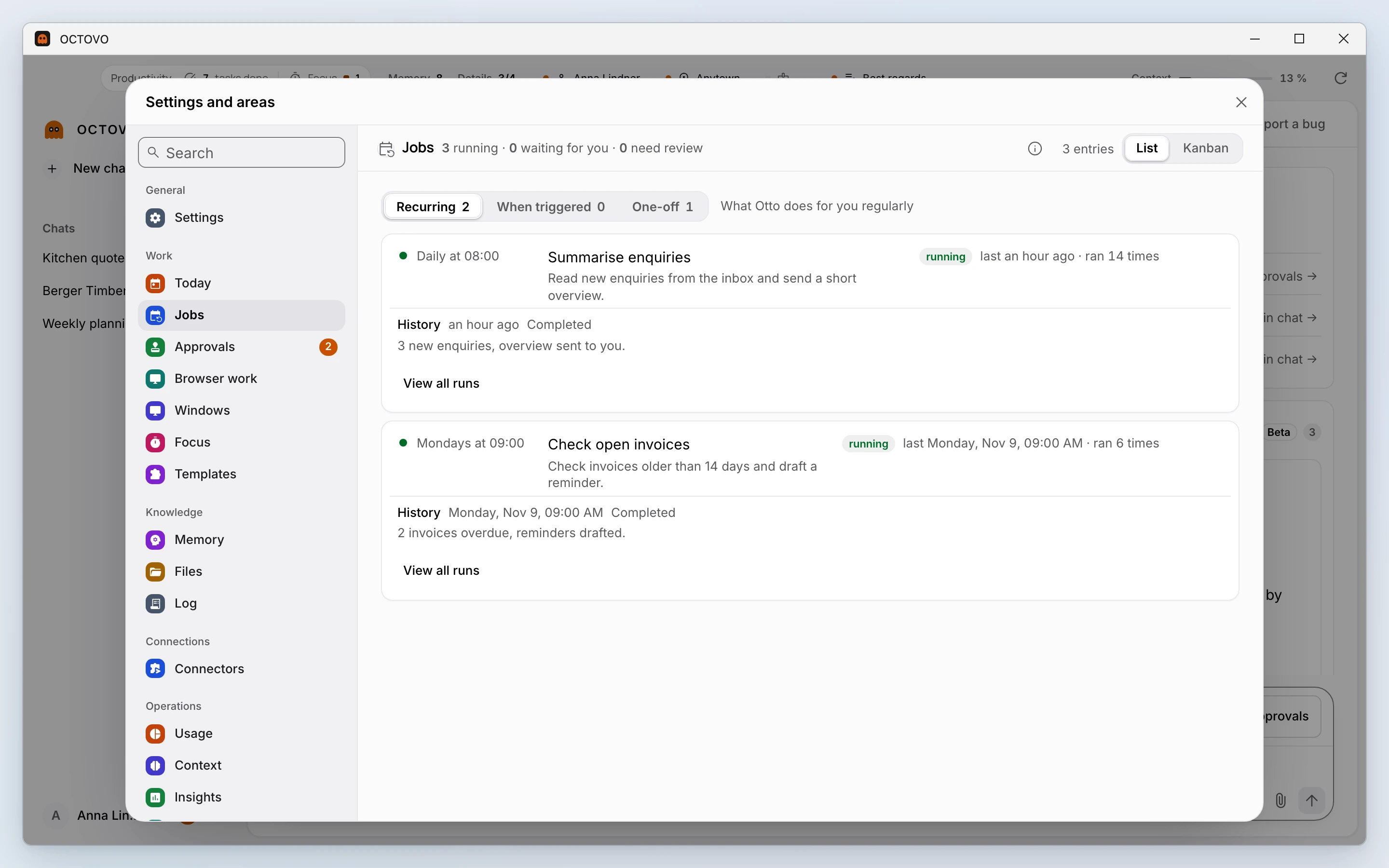
A job is work your assistant does once at a set time, regularly, or when something specific happens, for example “summarise new enquiries every morning”. You create jobs in a chat by saying what should happen when. You see and manage them in the “Jobs” window.
The jobs window
 Windows
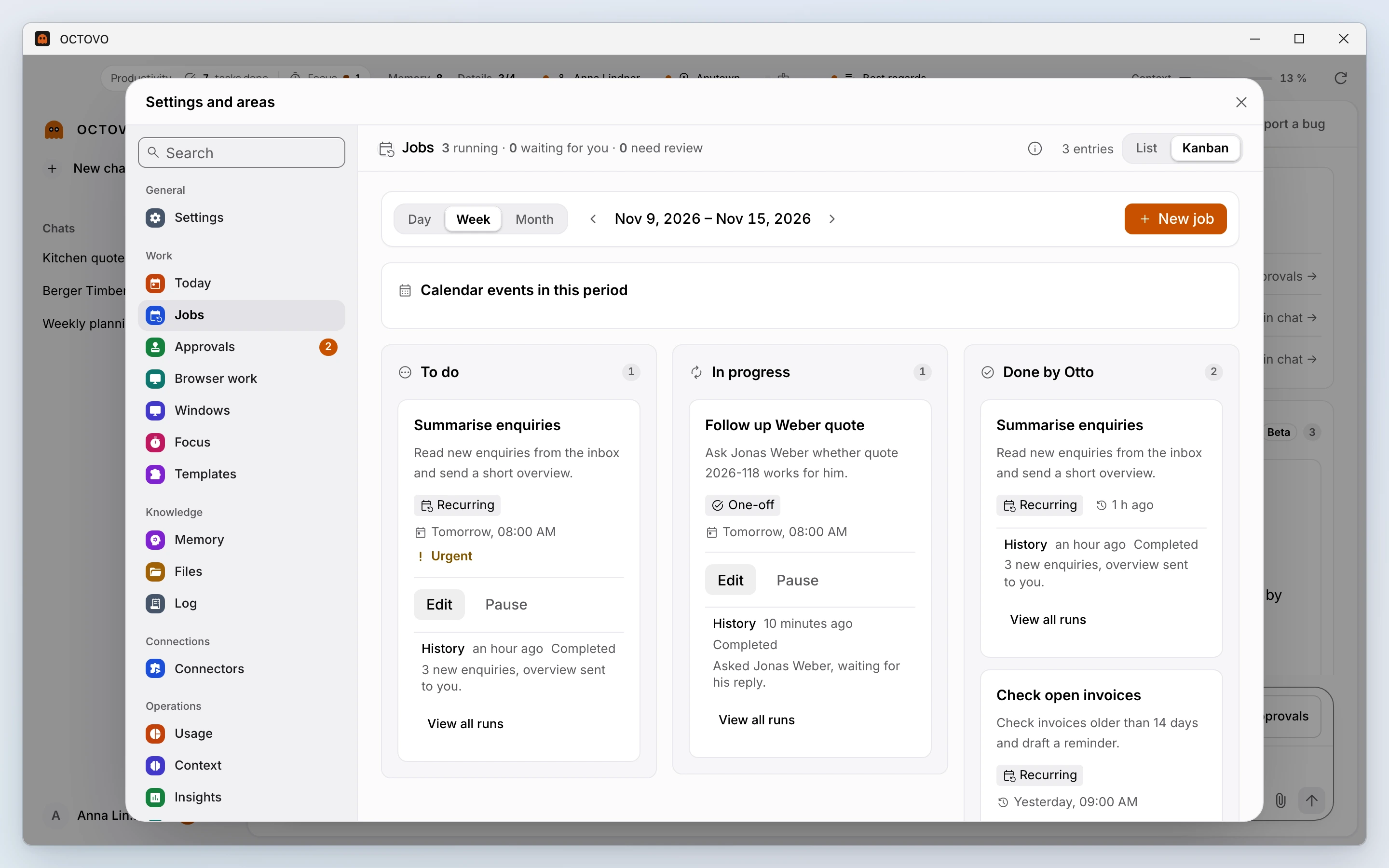
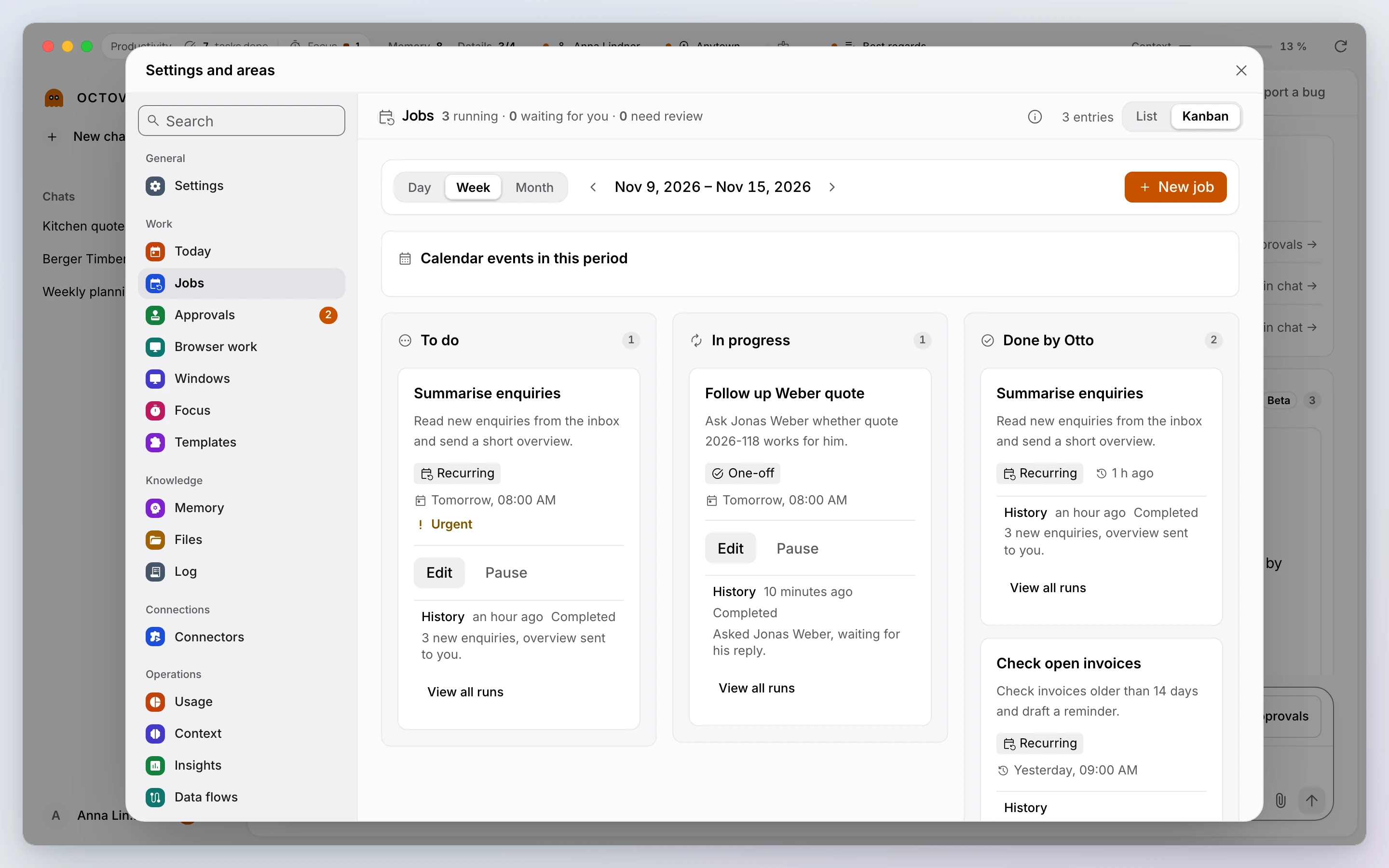
You choose between “Kanban” and “List” and page through day, week or month. In Kanban the jobs sit in three columns. You see appointments from your calendar for the same period.
What you see:
- One-off / Recurring / When triggered the three kinds of jobs.
- Kanban / List the view.
- Day / Week / Month the time range. “Previous period” and “Next period” page through.
- To do / In progress / Done the columns in Kanban.
- Urgent due within the next 24 hours. There is also “Overdue”.
- Calendar events in this period your calendar appointments in the chosen period.
- New job starts a draft for a new job in the chat.
Managing a job
 Windows
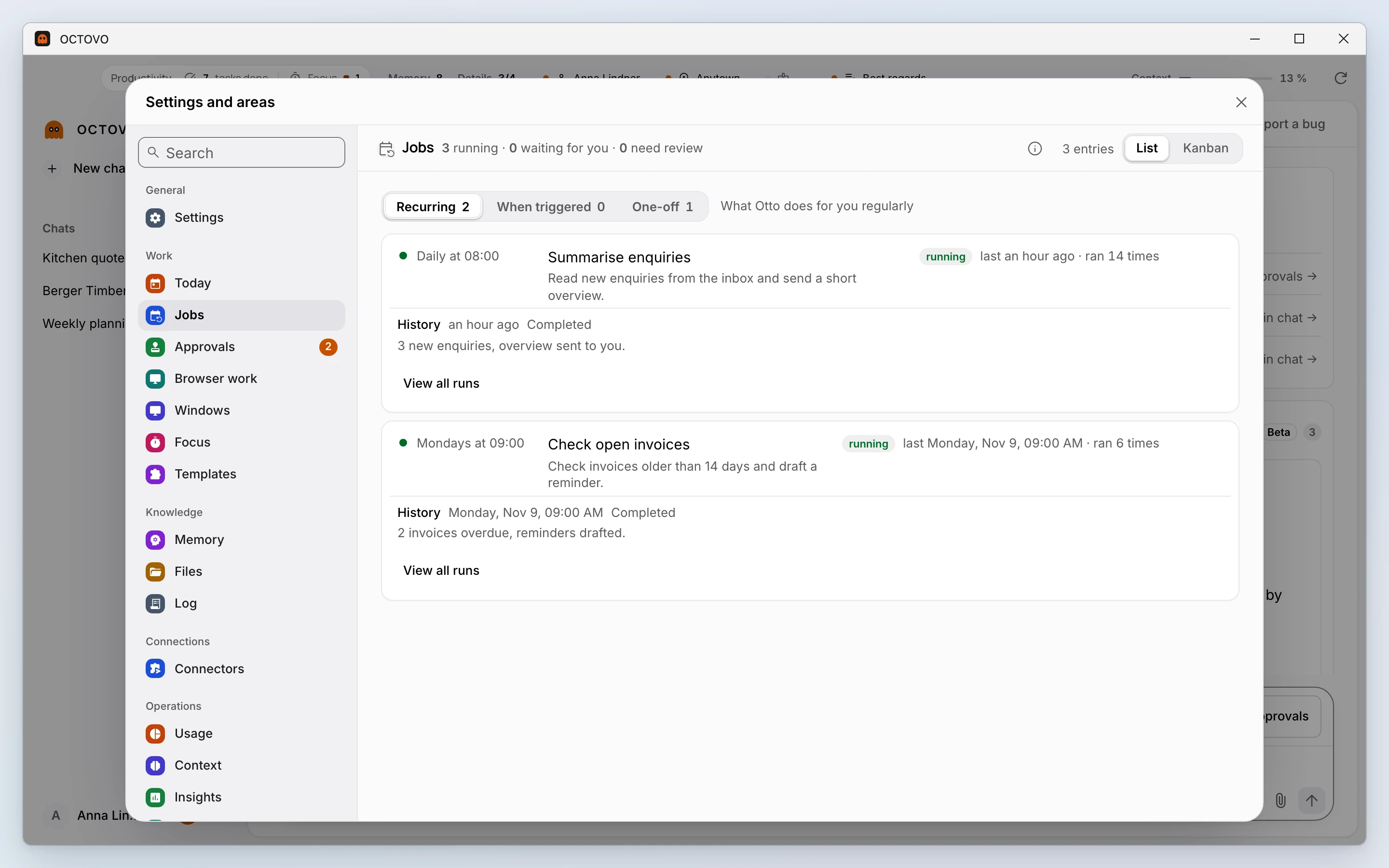
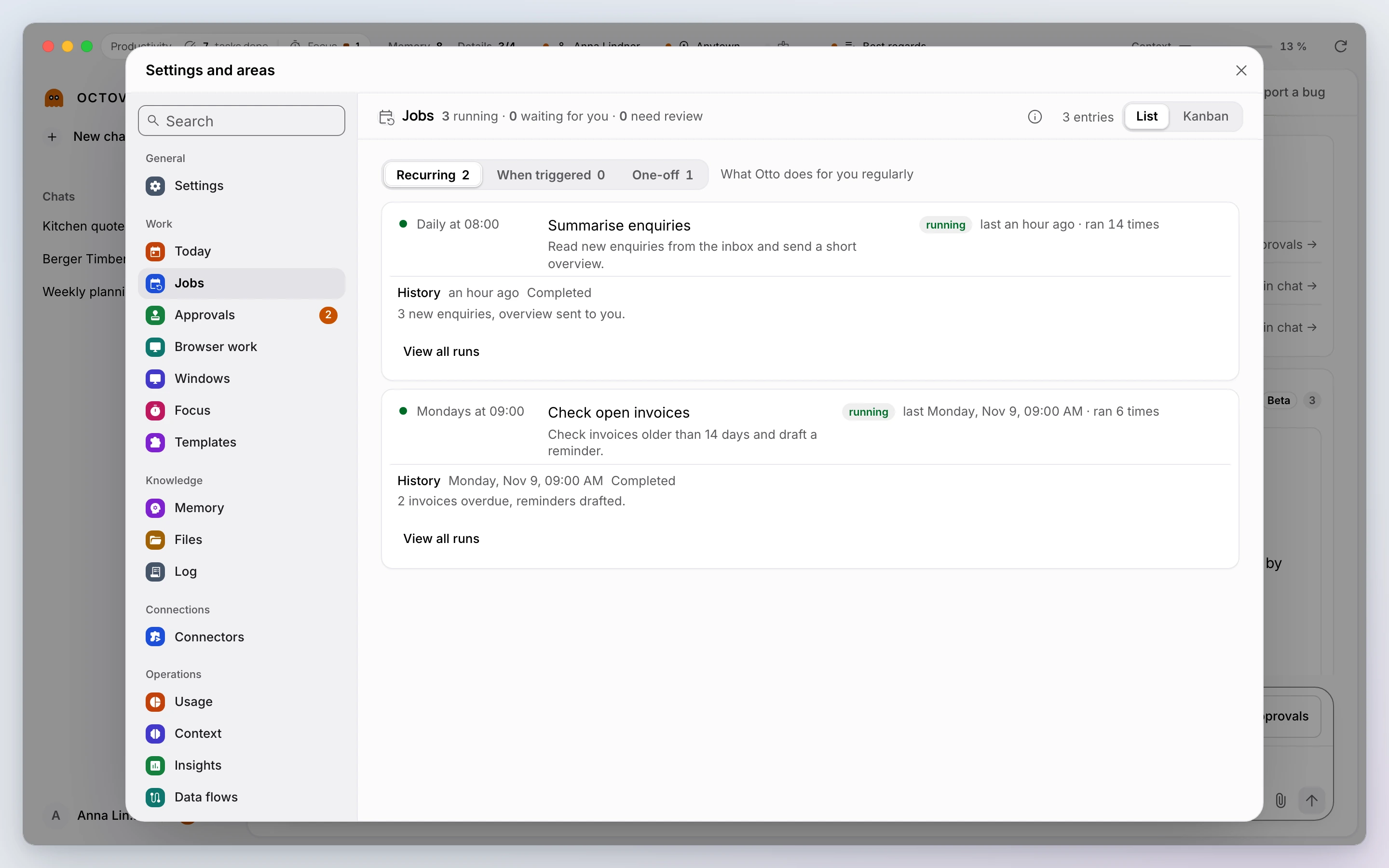
For each job you see its state and its runs. You can pause, continue, change or delete it.
What you see:
- State Planned, Running, Paused, Waiting for trigger, Waiting for your approval, Needs review, Done or Unavailable.
- Runs / Last run / Next time when the job ran and when it runs again.
- Trigger what started a “When triggered” job.
- Pause / Continue stops the job or lets it carry on.
- Change / Delete adjusts or removes the job.
- View results shows what the job has done.
- Let event-driven jobs run switch that pauses or runs all “When triggered” jobs together.
Jobs on the day board
 Windows
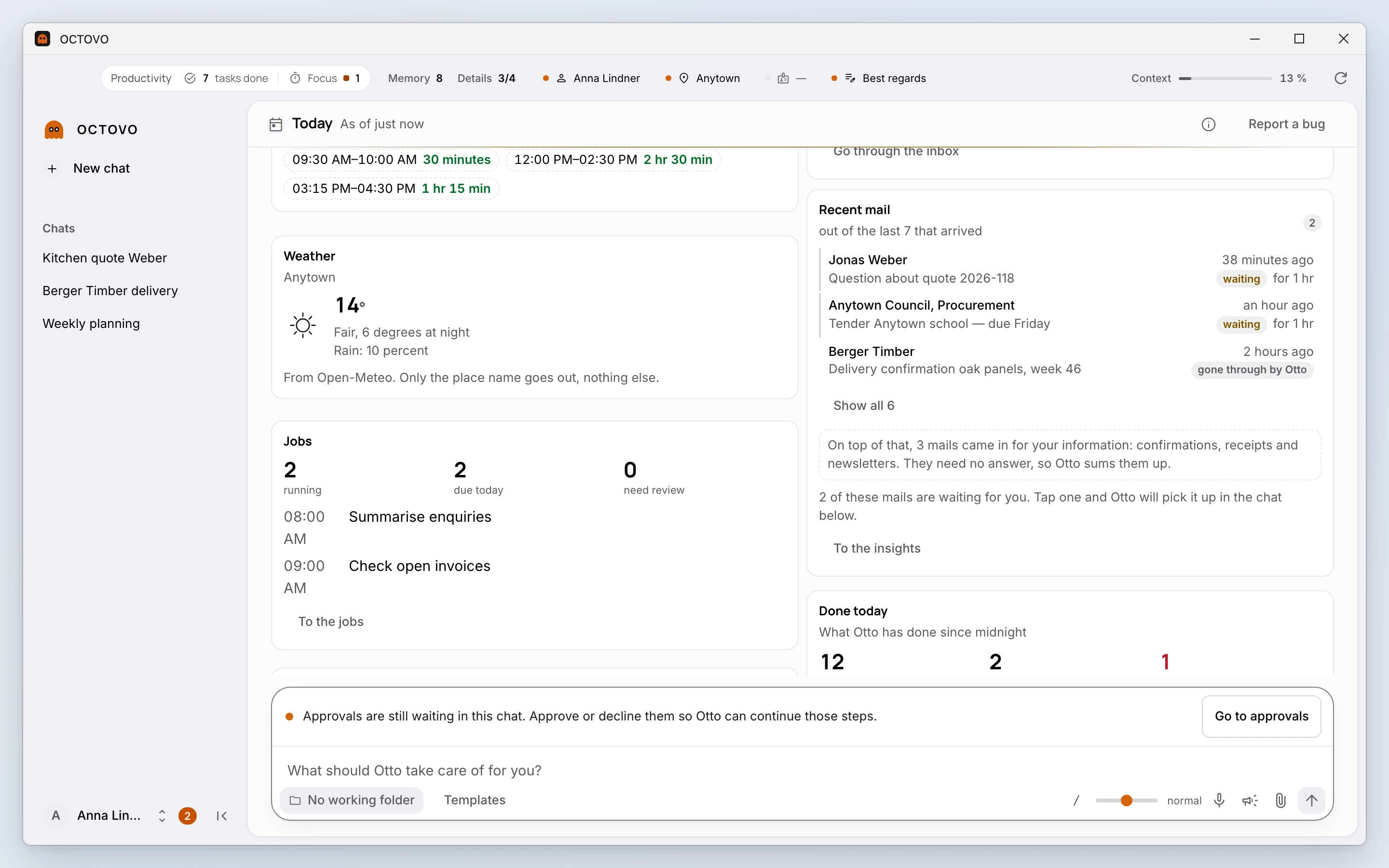
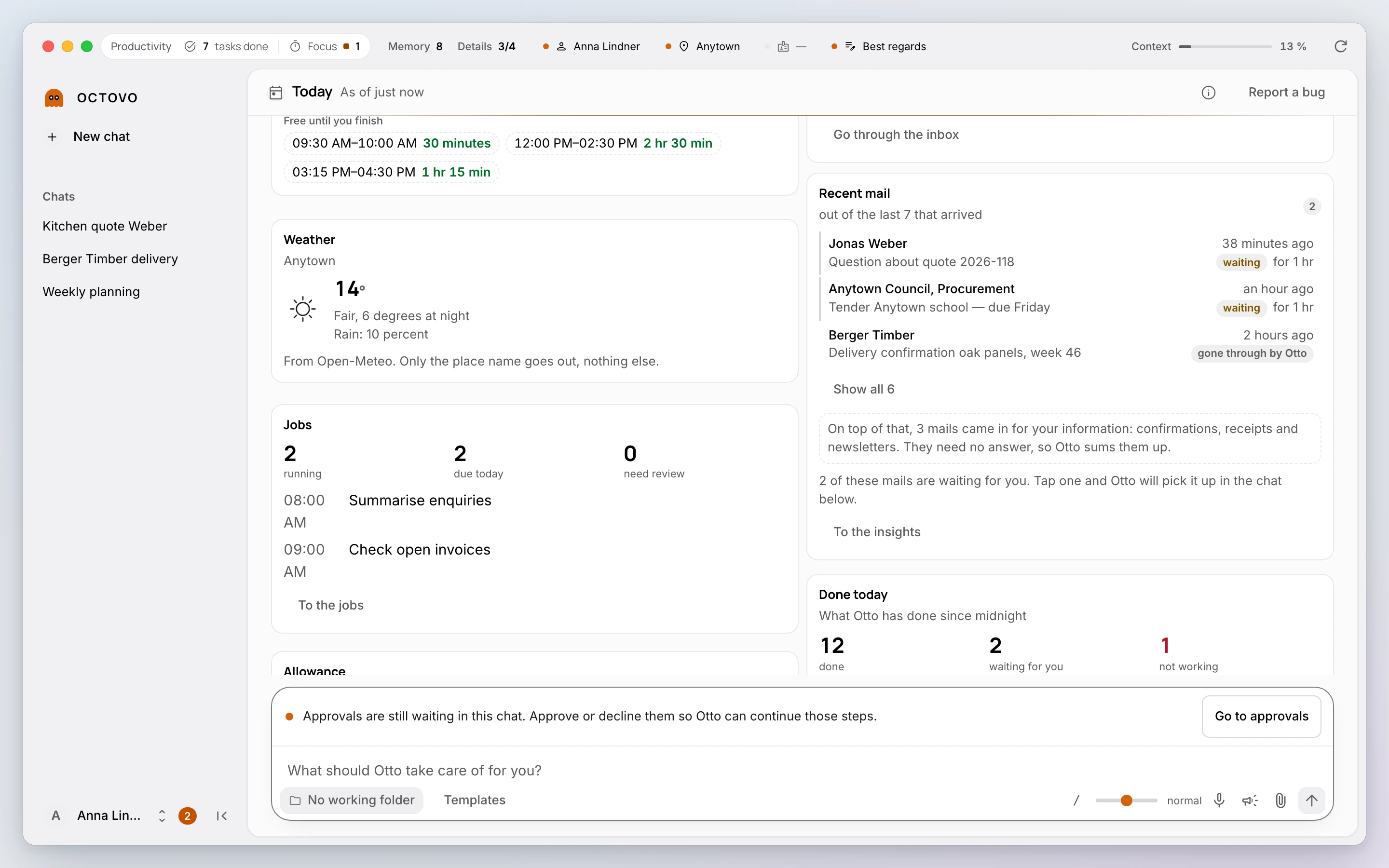
The “Your jobs” tile on the day board shows you what is coming up.
What you see:
- To the jobs opens the jobs window.
Viewing workers
 Windows
For bigger work your assistant sometimes hands parts to workers. The step list then says “A worker is on it”. If you open a worker, you see what it is thinking and what it has done.
What you see:
- Pause / Resume stops the worker or lets it carry on.
- Message to this agent gives it a note that it reads before its next step.
- Back to the conversation takes you back to the chat.
← Back: How independently your assistant works · Next: Browser work →