Working with your assistant
How independently your assistant works
The three levels, asking first and the emergency stop.
On this page
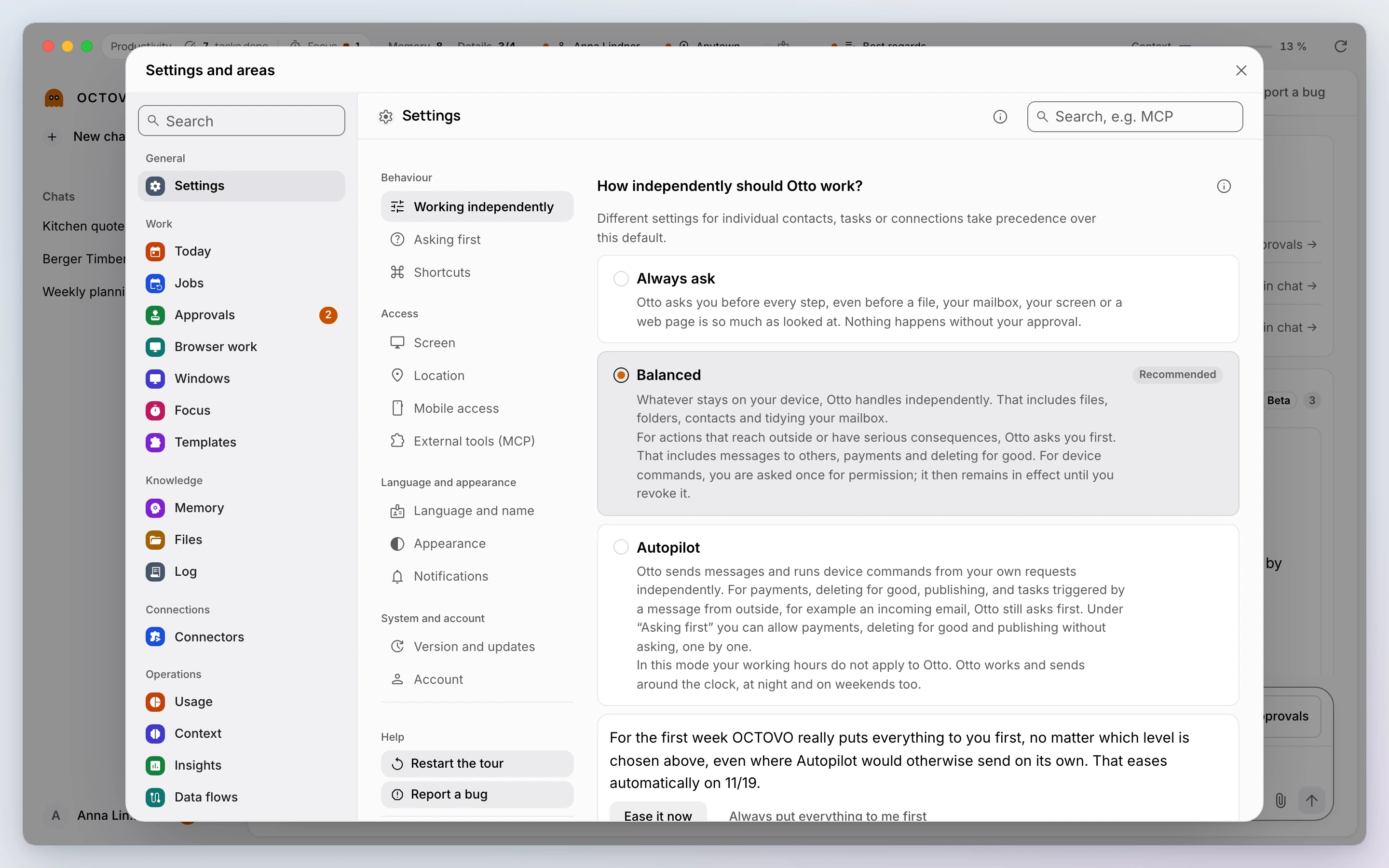
You decide how much your assistant may do without asking. Set this under “Settings” › “Working independently” or quickly via the icon in the menu bar or taskbar.
The three levels
 Windows
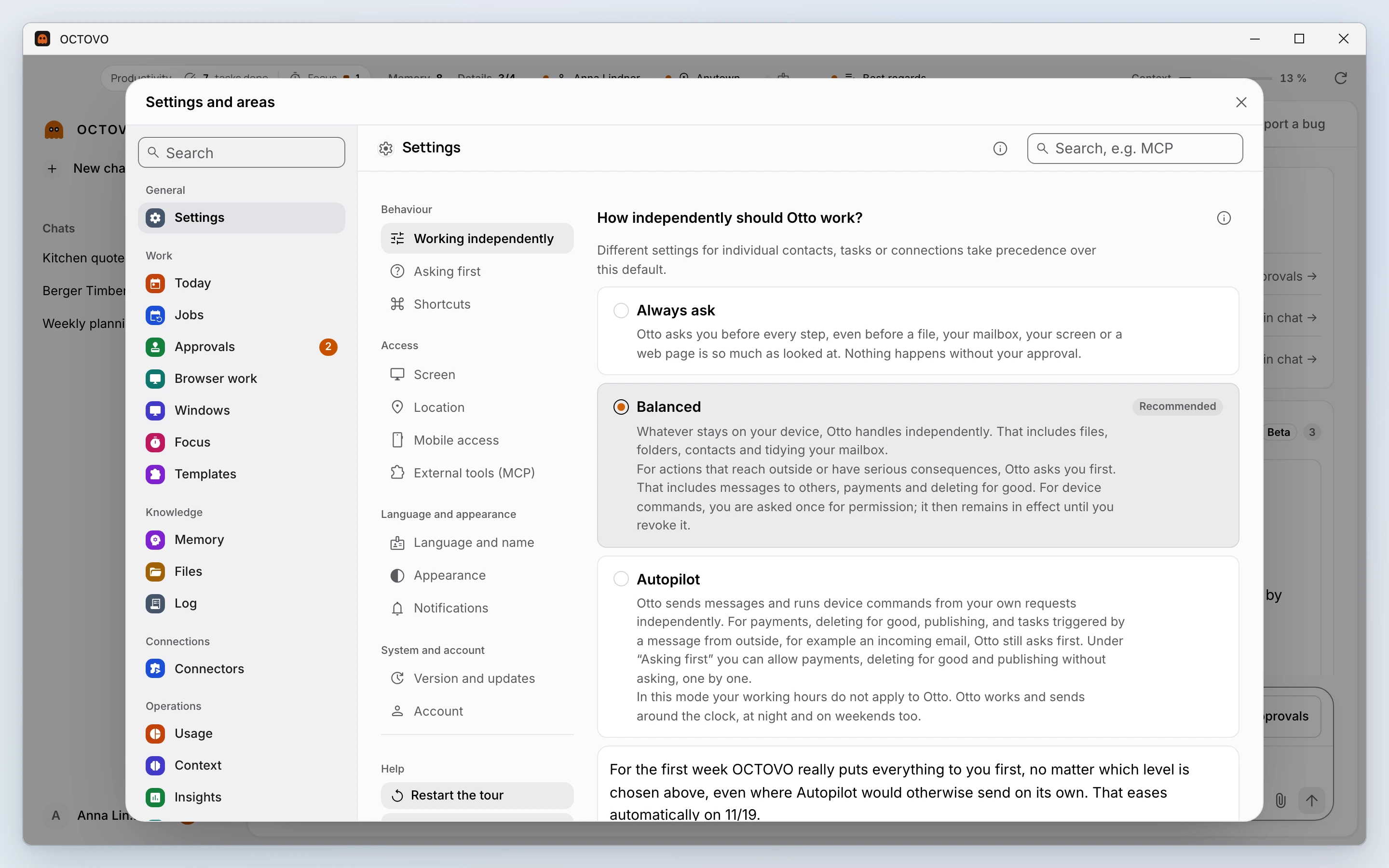
“Balanced” is recommended. In the beginning your assistant still shows you more until you are used to each other.
What you see:
- Always ask asks before every step, even before just looking.
- Balanced does things on your device on its own (files, folders, contacts, sorting the mailbox) and asks before anything with outside effect.
- Autopilot sends messages and runs normal device commands from your own jobs by itself. It still shows you payments, deleting for good, publishing and jobs triggered from outside.
- Always put everything to me first / Ease it now during the run-in phase: keep showing everything or relax to the chosen level now.
Protection against outside instructions
If an incoming email or a web page contains a request to send something, your assistant shows it to you even on Autopilot. Text from others cannot make it send anything out without asking.
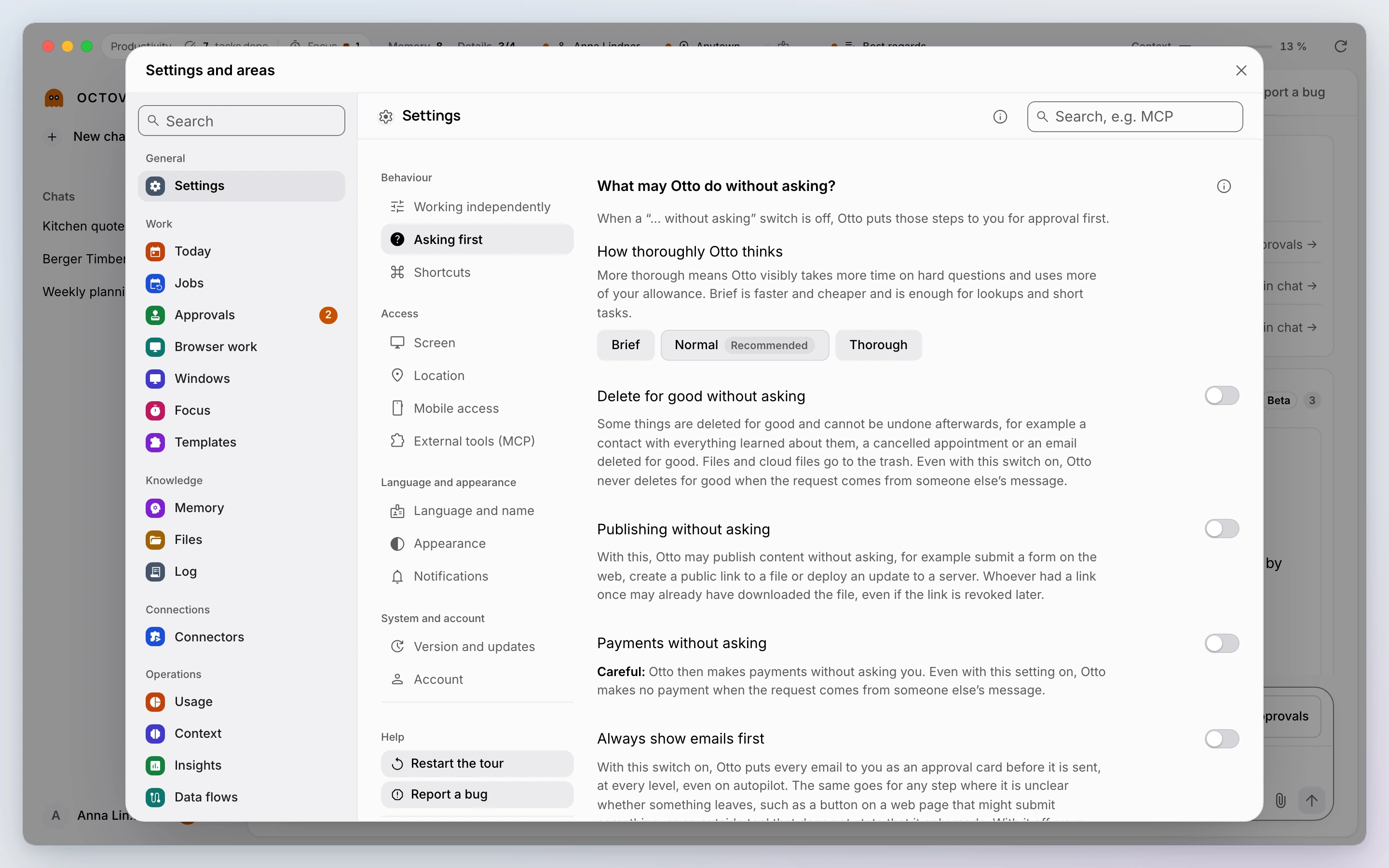
Asking first in detail
 Windows
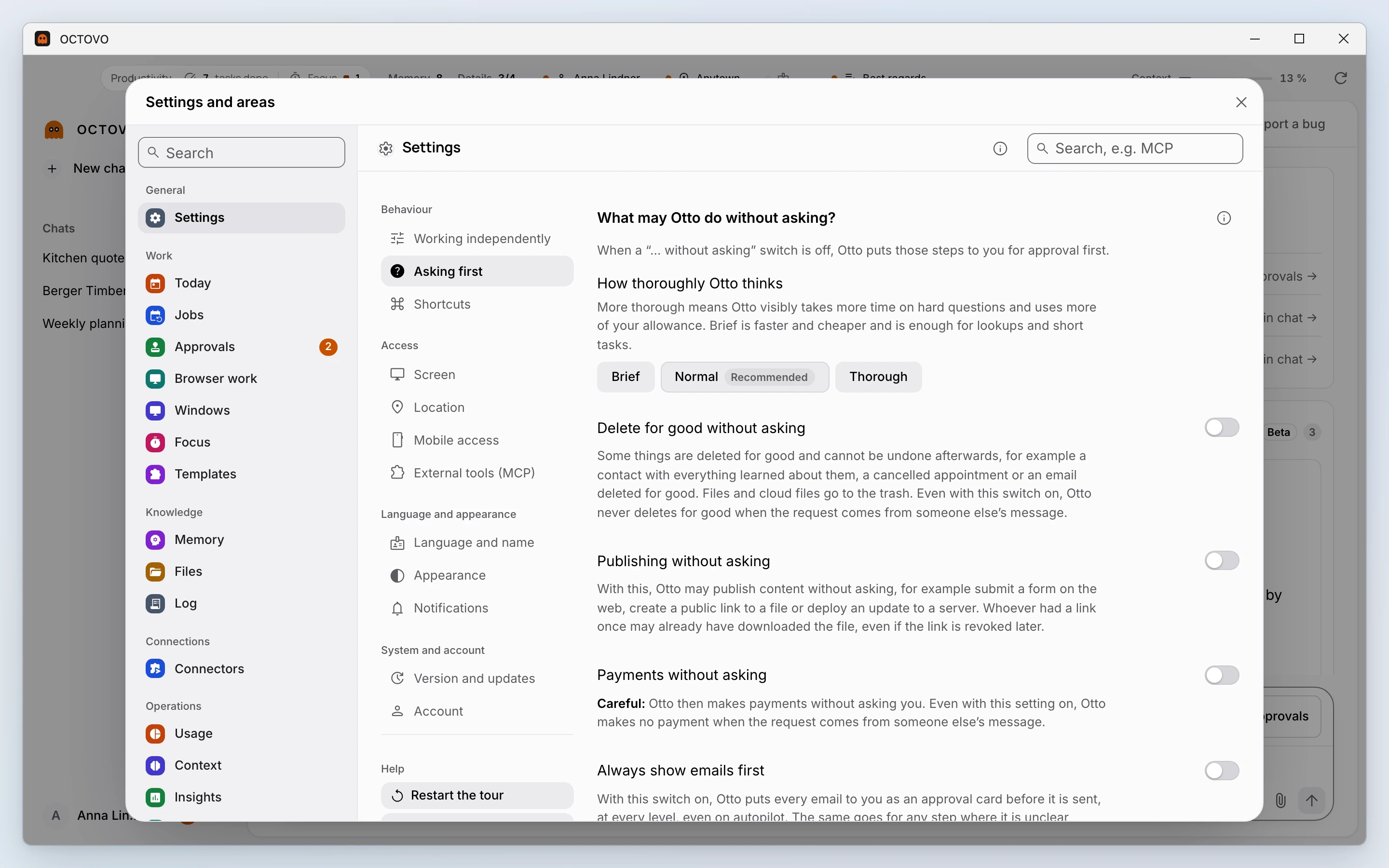
Under “Asking first” you decide for individual cases whether to ask.
What you see:
- Always show emails every email goes to approvals, whatever the level.
- Delete for good without asking off by default.
- Payments without asking off by default, with a warning.
- Publish without asking off by default.
- Device commands allowed in Balanced allows normal commands on “Balanced” too.
- Allow commands with admin rights allows commands that need administrator rights. They are always shown to you.
The emergency stop
 Windows
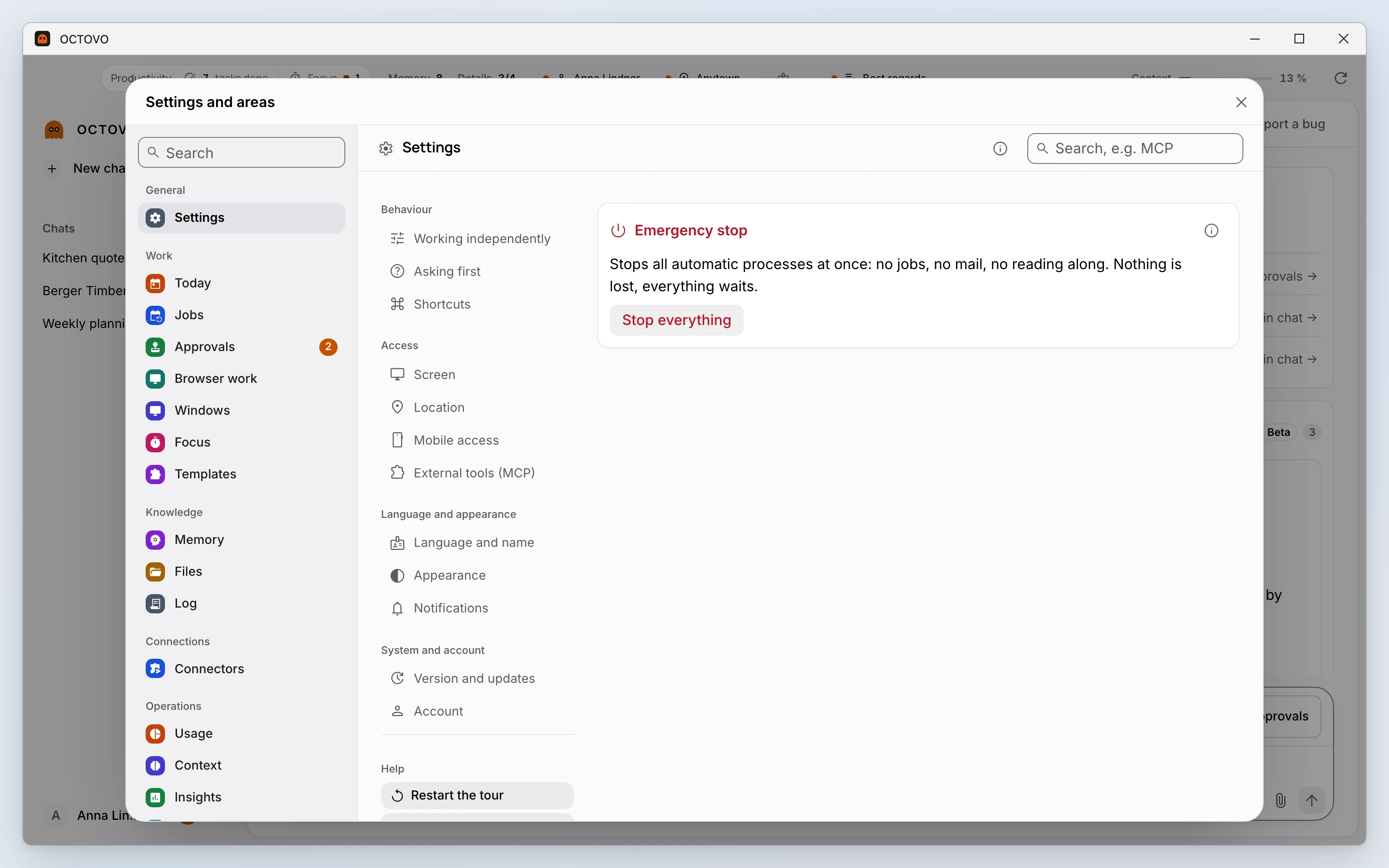
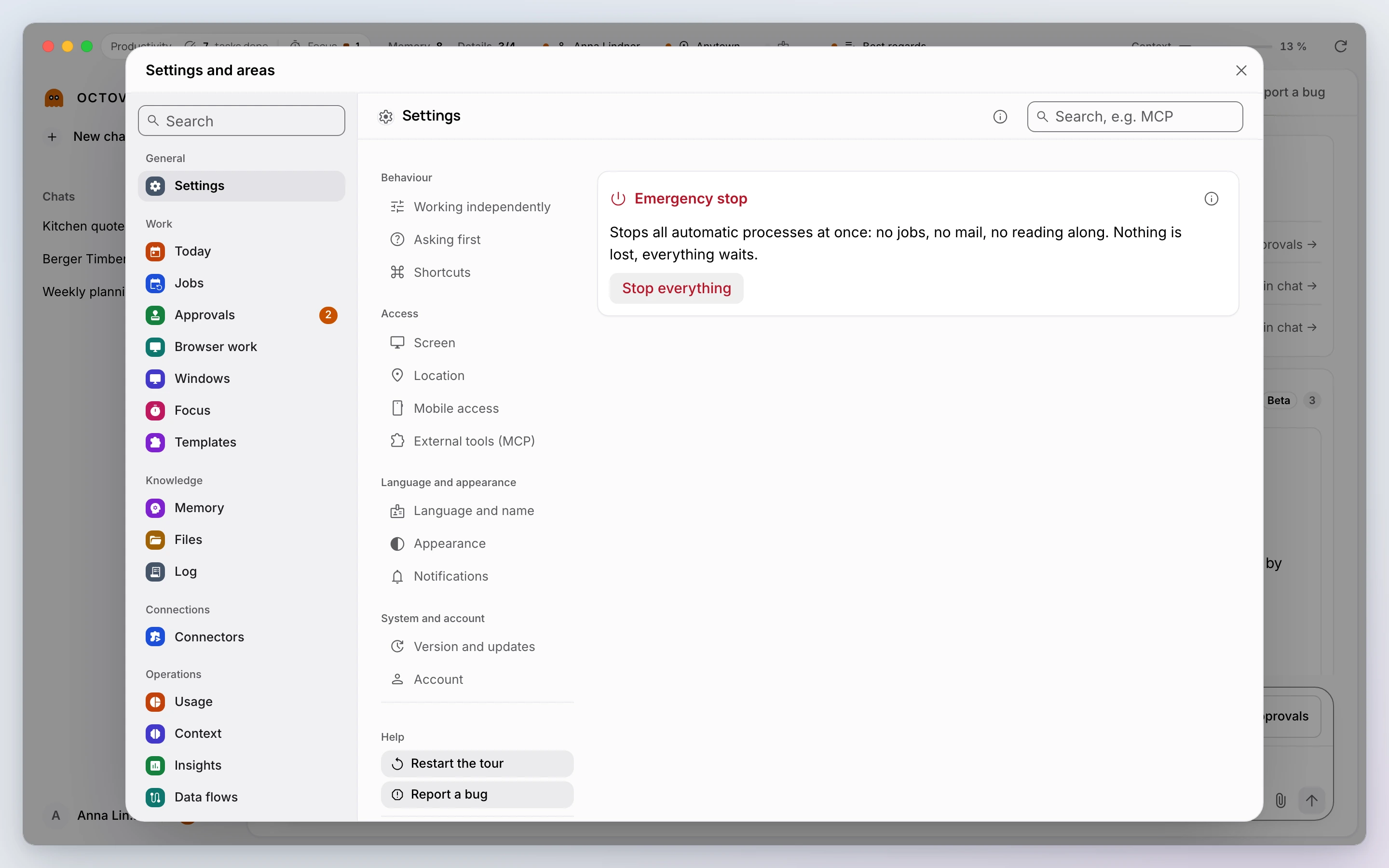
“Stop everything” immediately halts all automatic processes: no jobs, no emails, no reading along. Nothing is lost. “Start again” resumes.
What you see:
- Stop everything in Settings and at the icon in the menu bar or taskbar.
- Start again lifts the emergency stop.