iPhone app
Connecting your iPhone
Connect the iPhone app to your computer.
On this page
Your assistant lives on your computer. The iPhone app is your view of it while you are out. So that it finds your computer, you connect it to your account once. The quickest way is a QR code.
Showing the QR code on your computer
 Windows
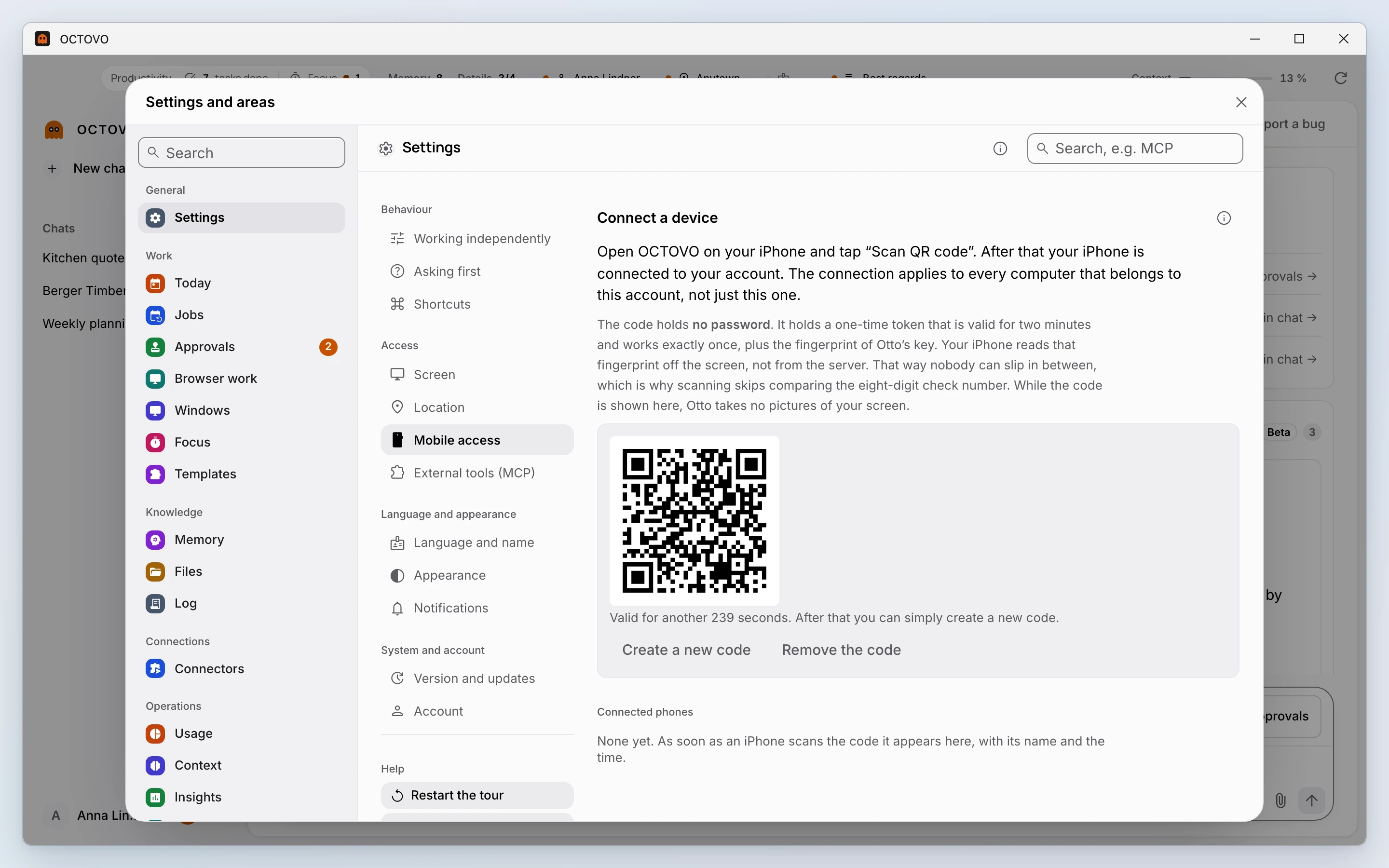
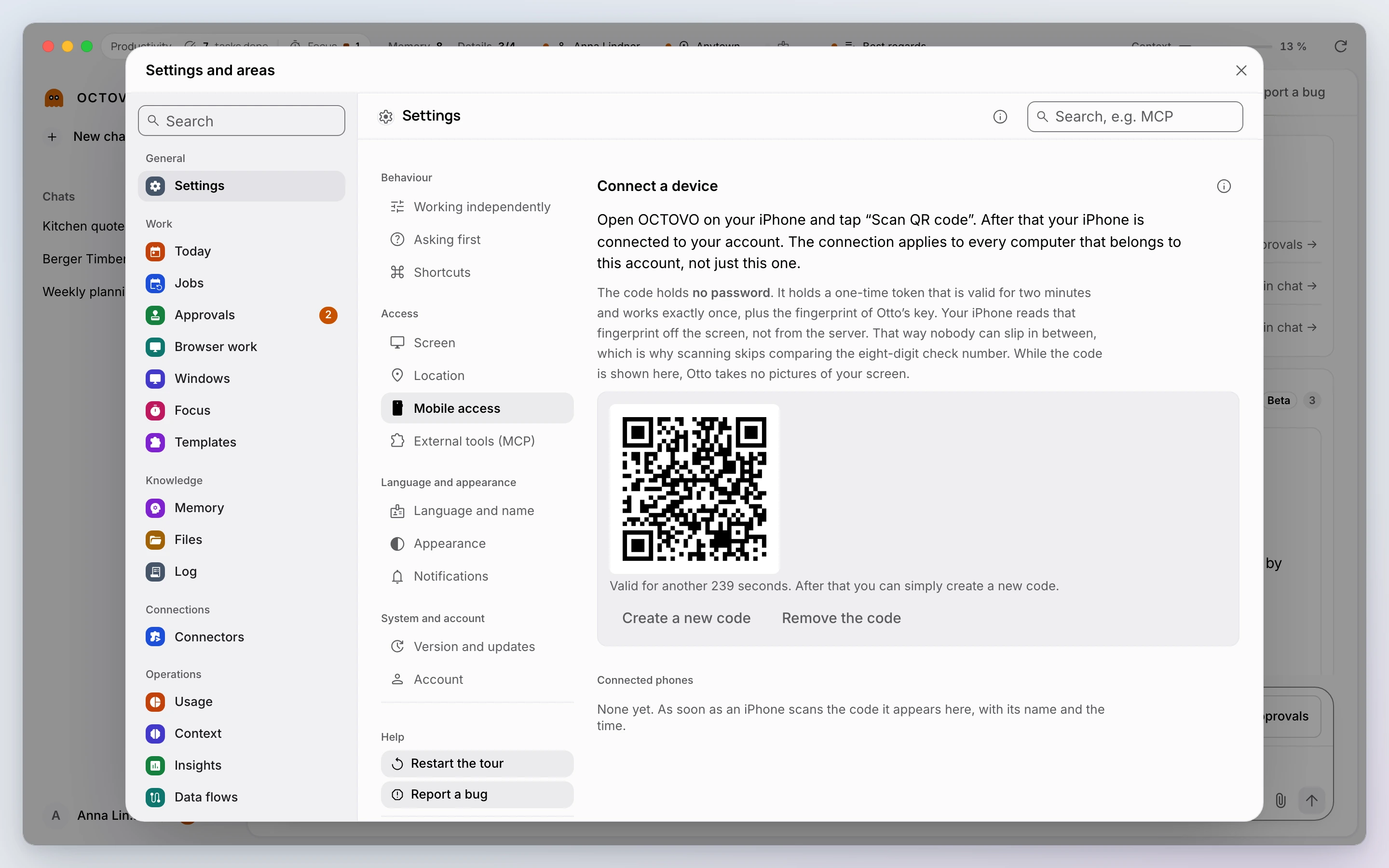
On the computer, open “Settings” › “Mobile access” and go to “Connect a device”. The code is valid for two minutes and exactly once. It contains no password.
What you see:
- Connect a device the section for connecting.
- Show QR code creates a new sign-in code.
- Connected phones shows every connected iPhone with its name and time.
Scanning the code on your iPhone
Open OCTOVO on your iPhone and tap “Scan the QR code on your laptop”. Point the camera at the code. If your computer is not within reach, sign in with email and password.
What you see:
- Scan the QR code on your laptop opens the camera.
- Sign in with email and password the way without a code.
- Try it without a laptop shows the app with practice data.
Comparing the check number
 Windows
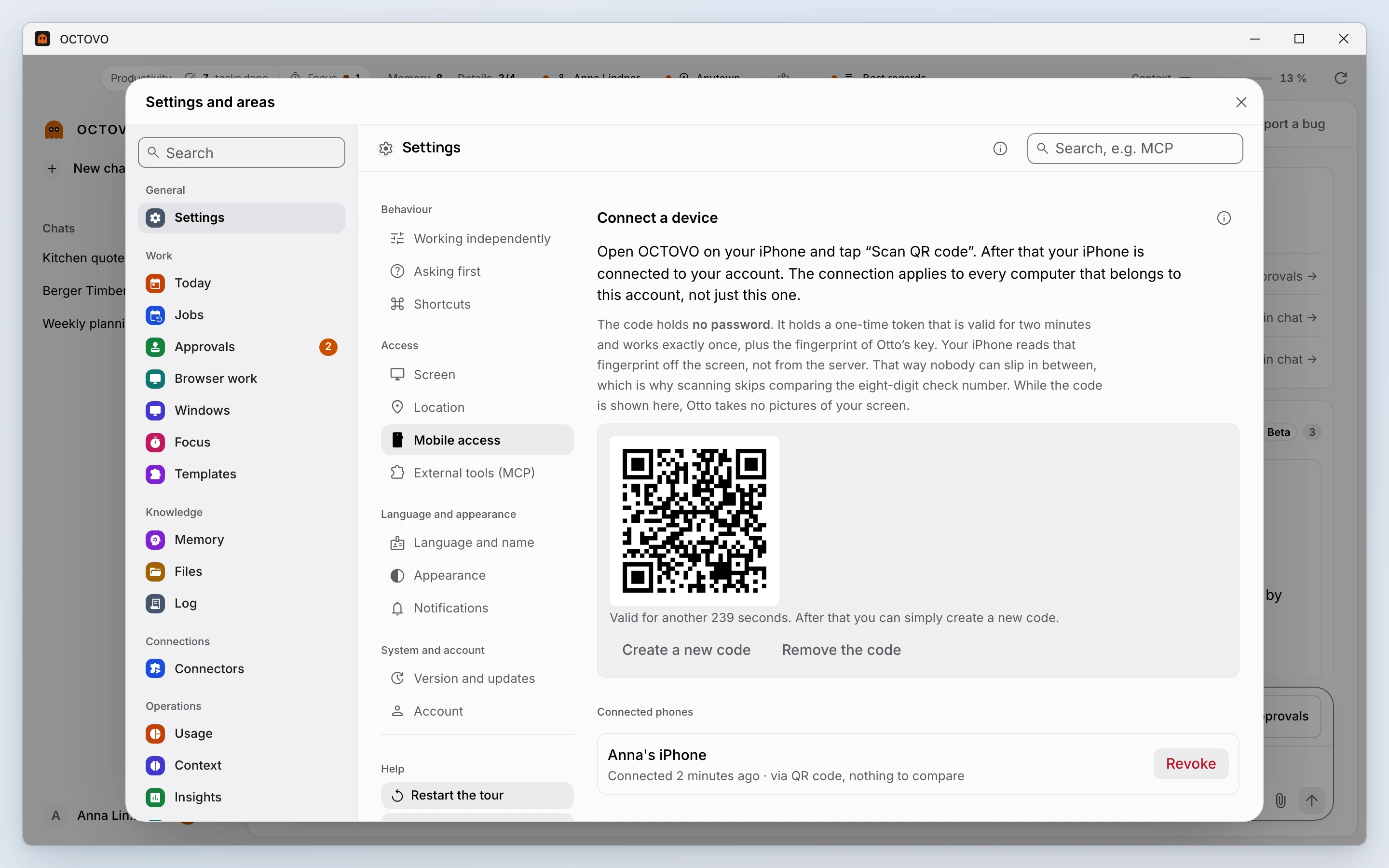
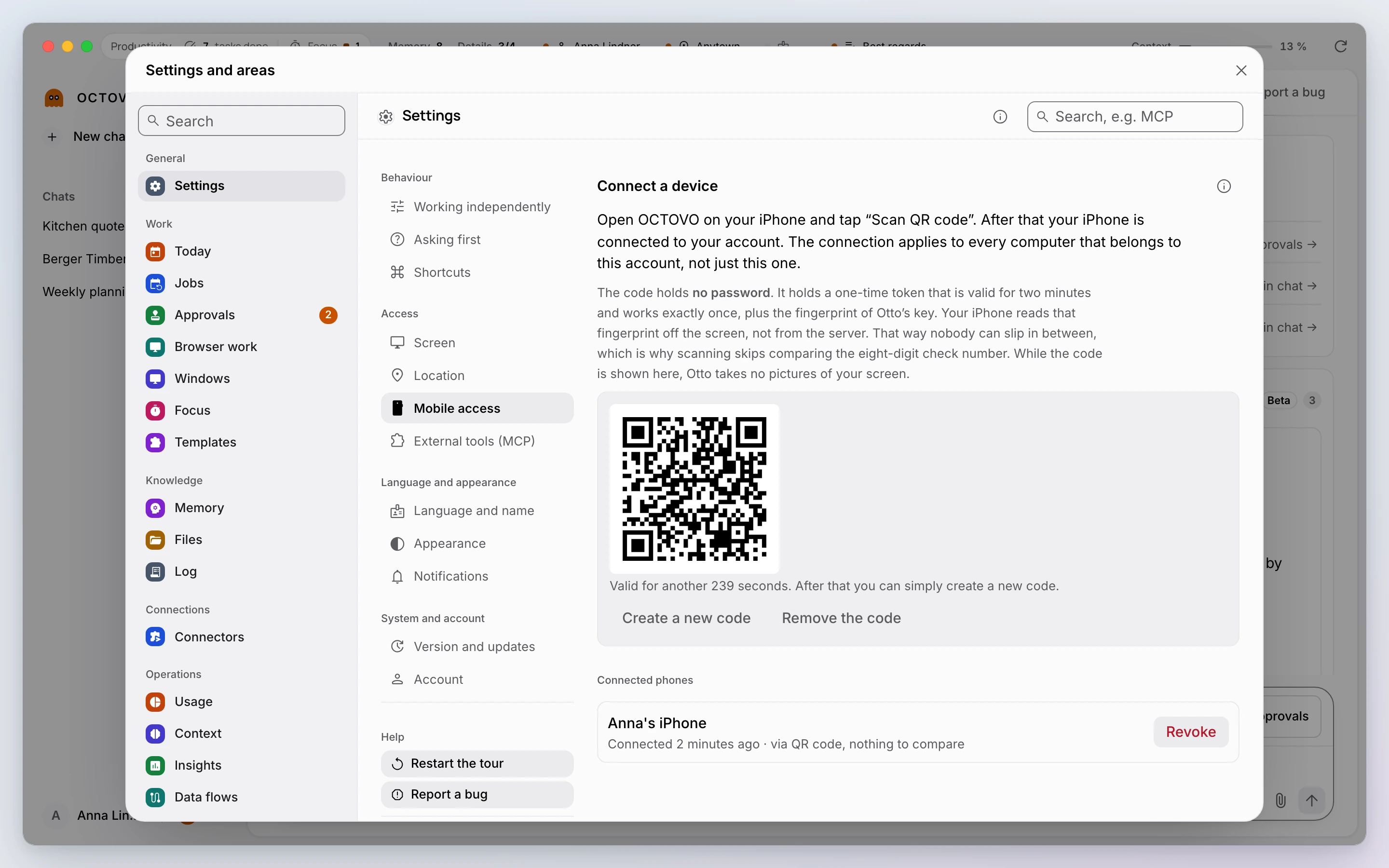
If you sign in with email and password, both devices show the same eight-digit check number once. Only after you confirm it on the computer may the iPhone do anything. With the QR code there is nothing to compare.
What you see:
- Check number matches confirms on the computer under “Connected phones” that the numbers match.
- Does not match on the iPhone: cancels if the numbers differ.
- Revoke disconnects a phone you do not recognise.
← Back: Files and earlier versions · Next: Using the iPhone app →