Getting started
The first setup
What happens on the first start, step by step.
On this page
On the first start, your assistant guides you through the setup in conversation. You can skip individual steps and catch up on them later. At the bottom you always find “Back”, “Continue” and “Skip”.
Choosing a language
 Windows
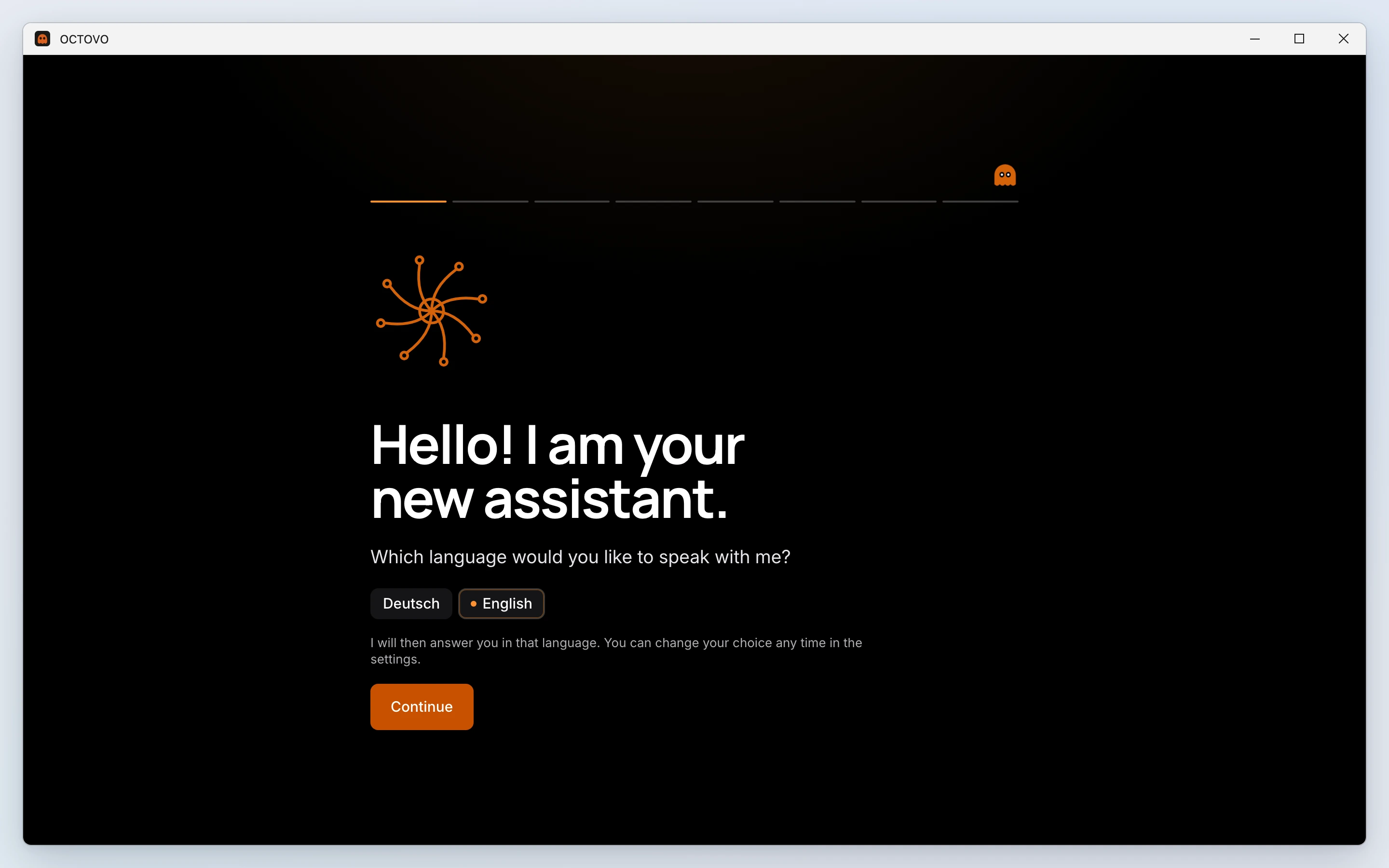
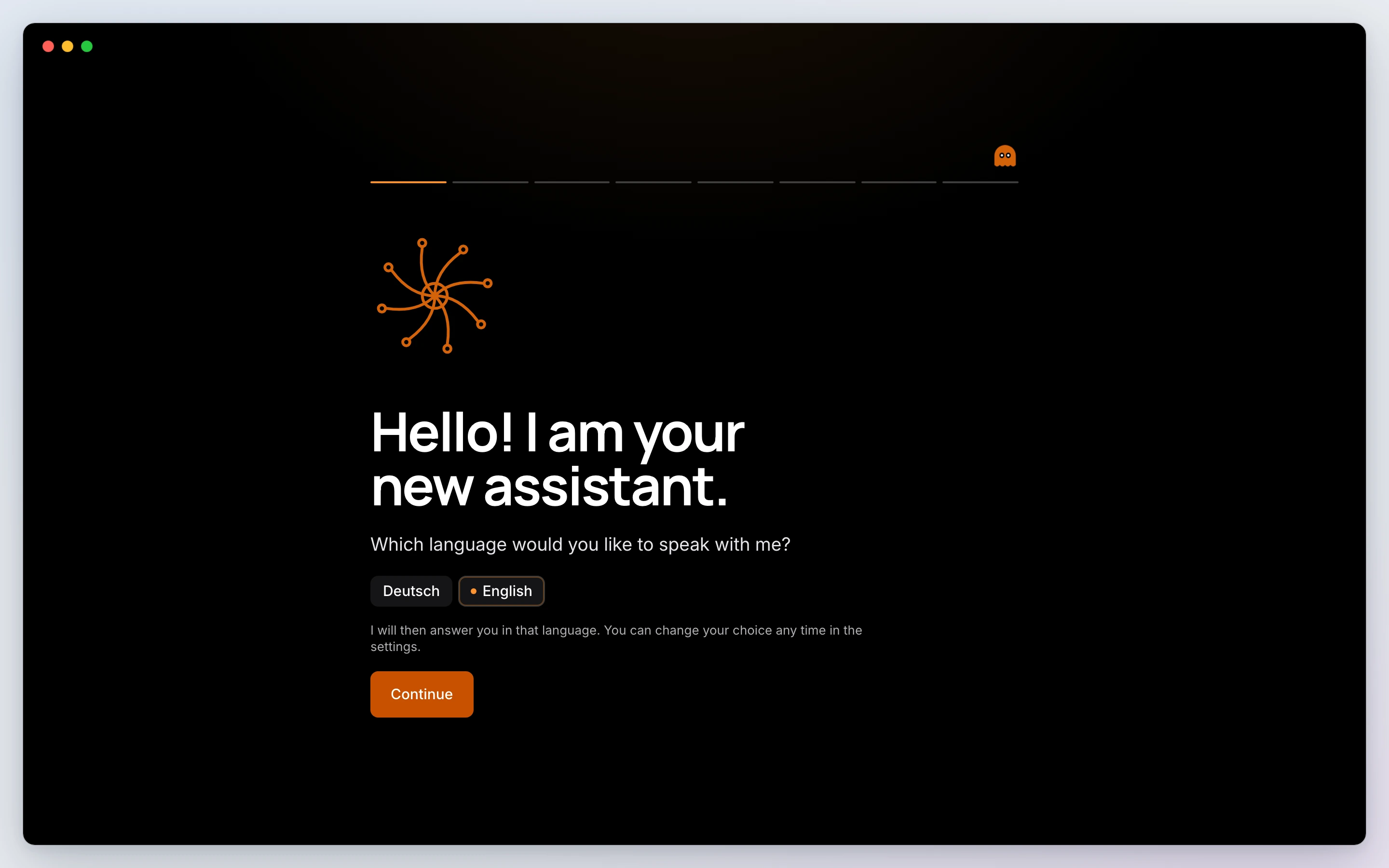
First, choose whether your assistant speaks German or English.
What you see:
- Deutsch / Englisch the two options, shown under these names. Sets the language of the app and the assistant. You can change it later under “Settings” › “Language and name”.
Signing in with your account
 Windows
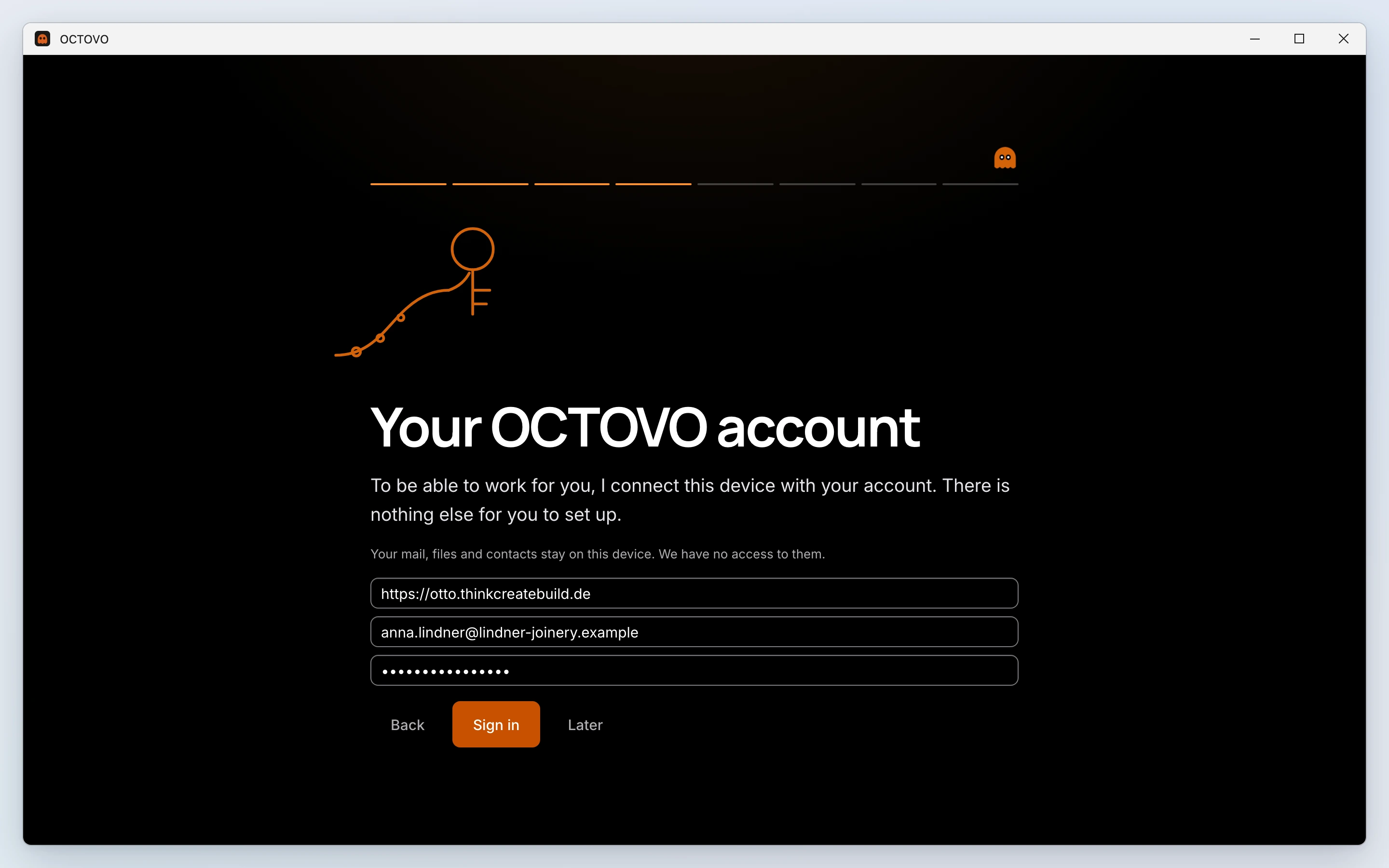
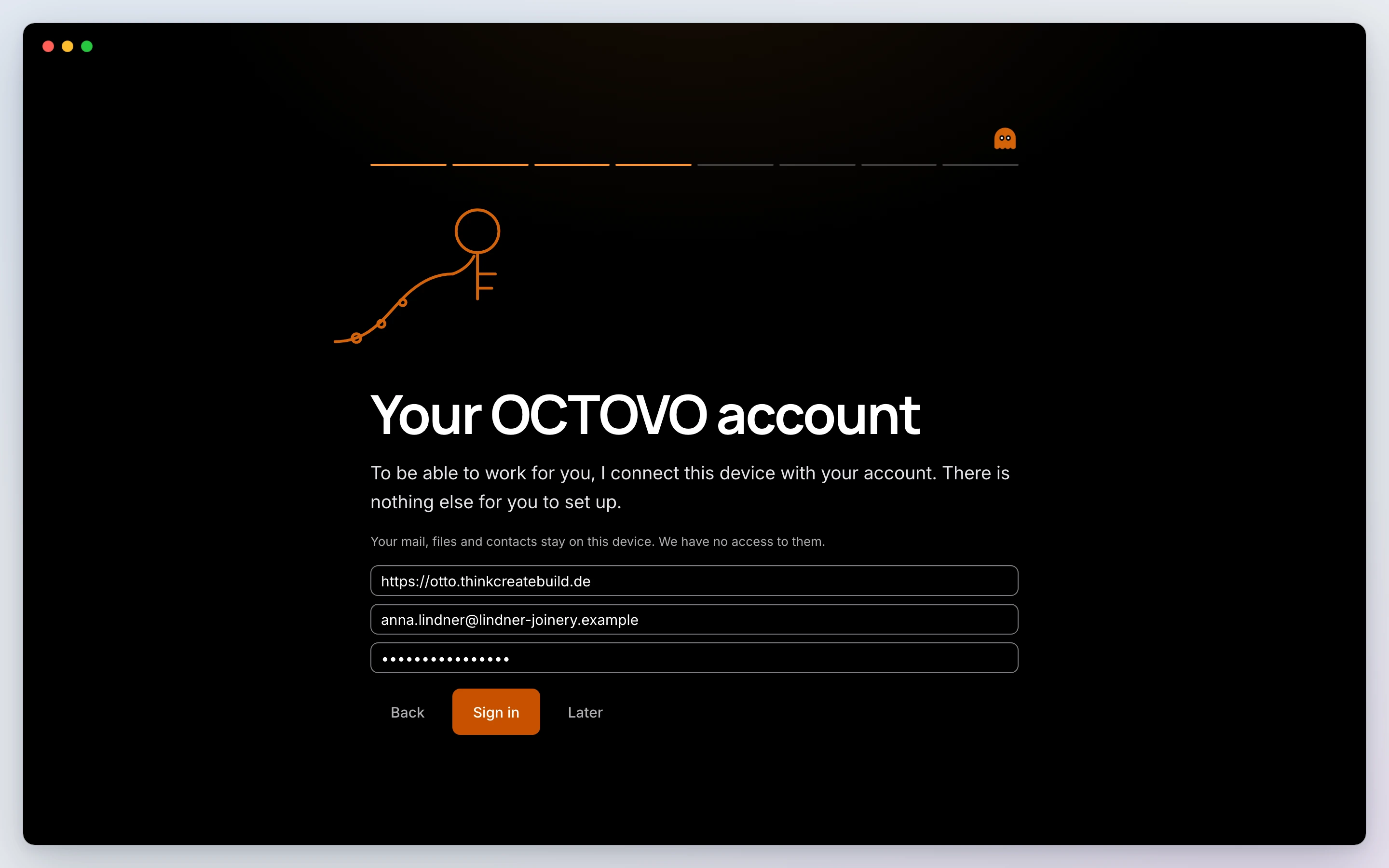
Sign in with the email address and password of your OCTOVO account. Mail, files and contacts stay on your device.
What you see:
- Email address the address of your OCTOVO account.
- Password your account password.
- Server address is filled in already, you normally do not need to change it.
- Sign in signs this device in to your account.
Choosing names
 Windows
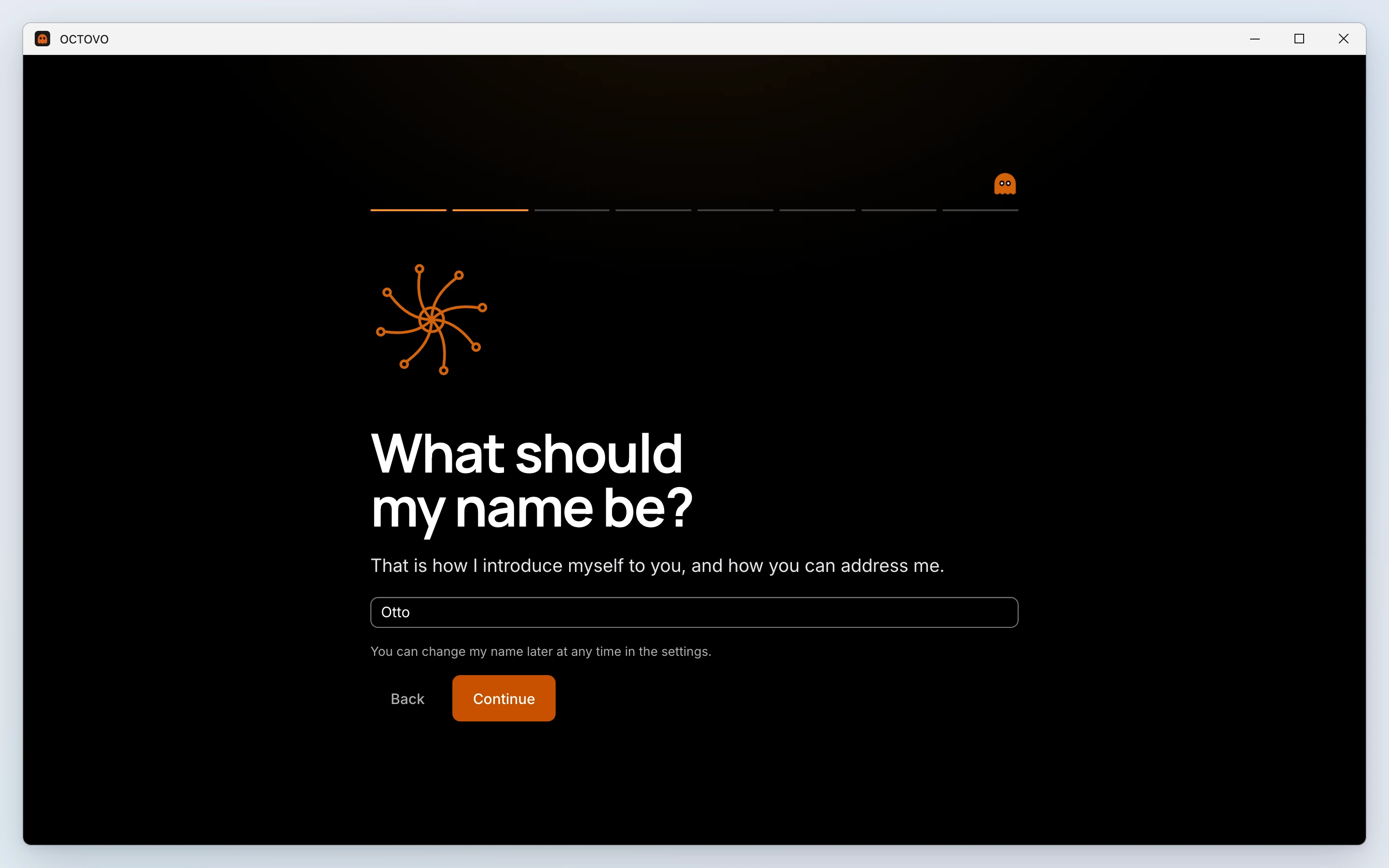
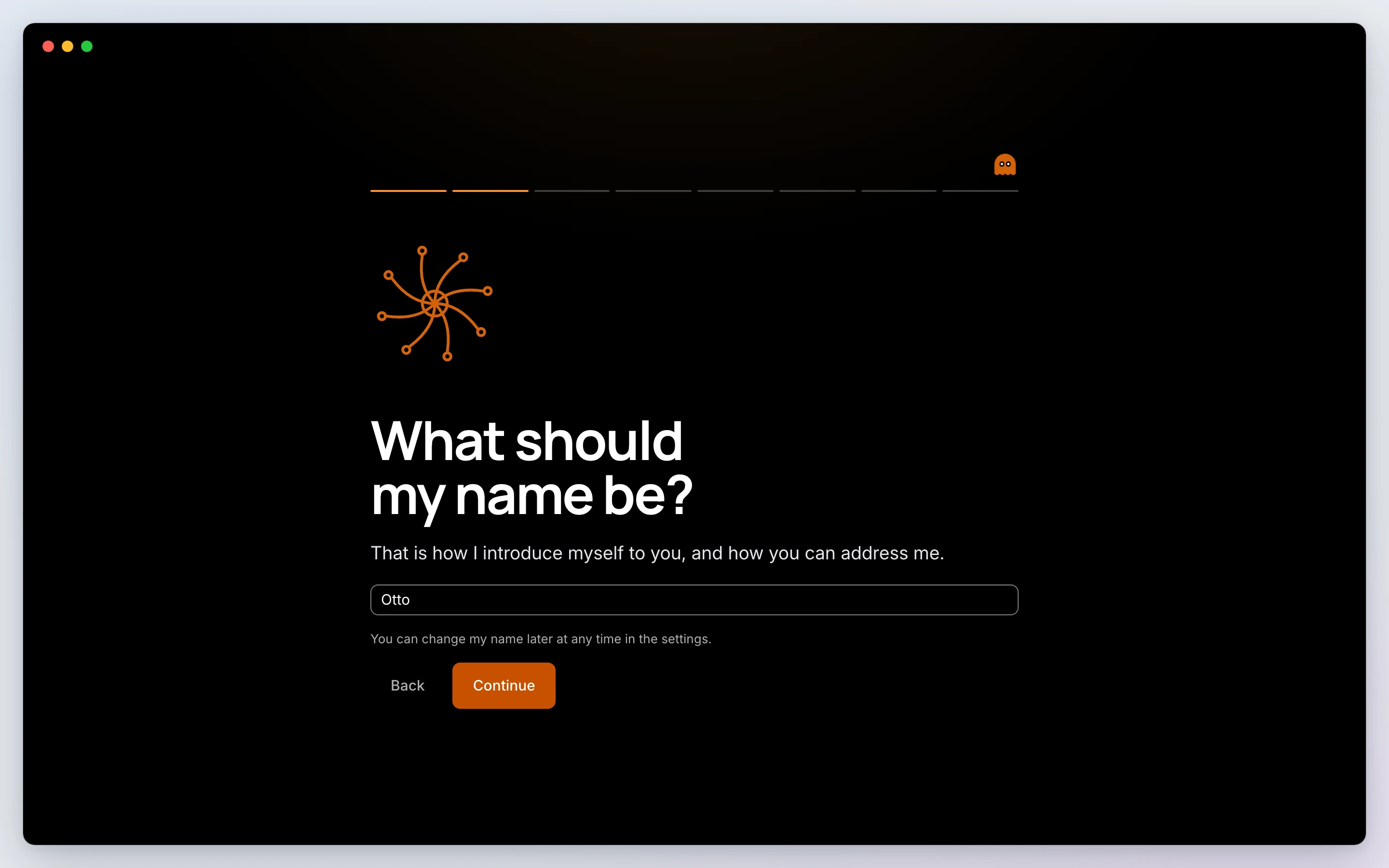
Your assistant asks what it should be called and then what your name is. “Otto” is suggested. You can change the name here or later at any time under “Settings” › “Language and name”.
What you see:
- Name of your assistant how your assistant refers to itself.
- What is your name? how it addresses you.
Connecting a mailbox
 Windows
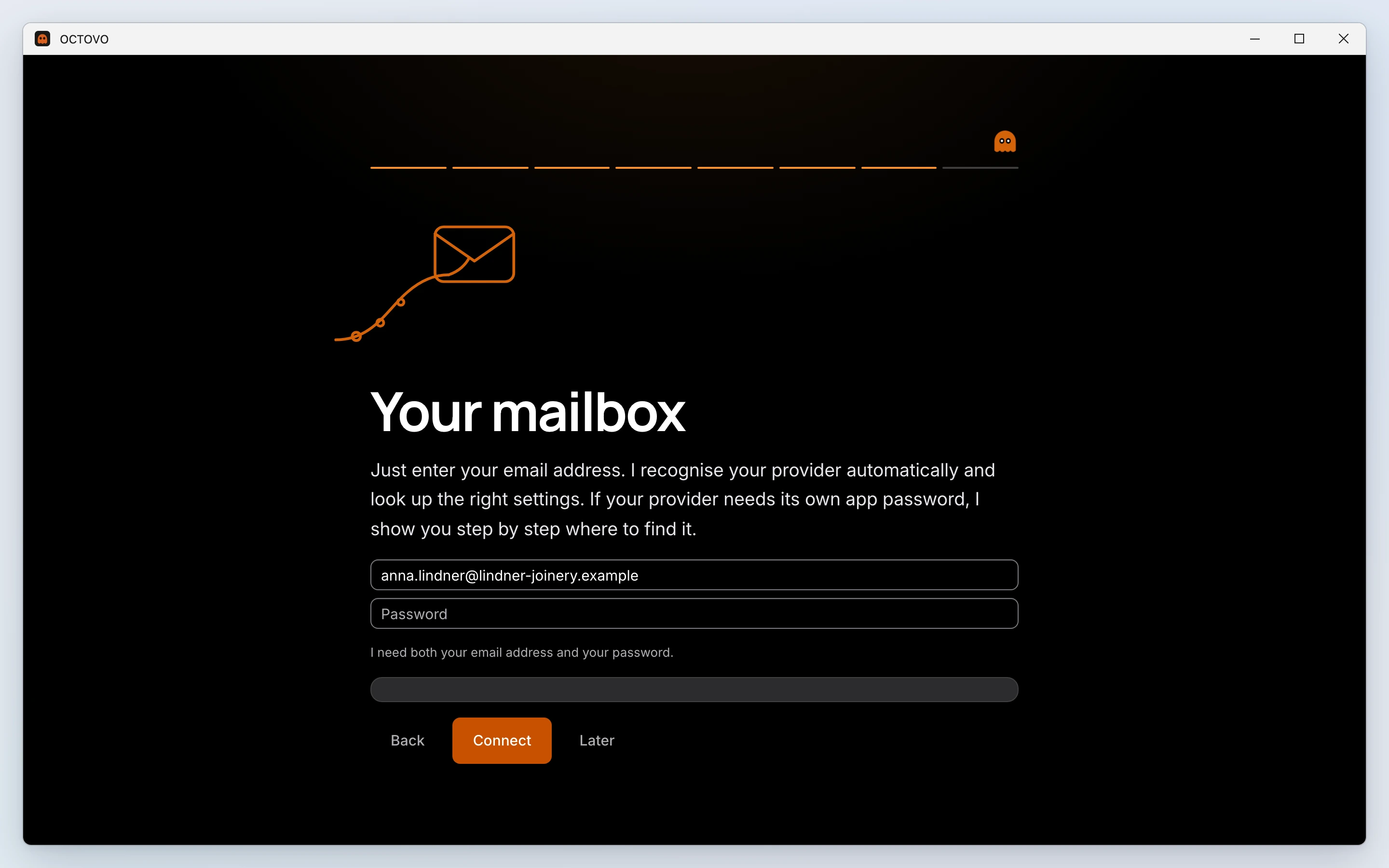
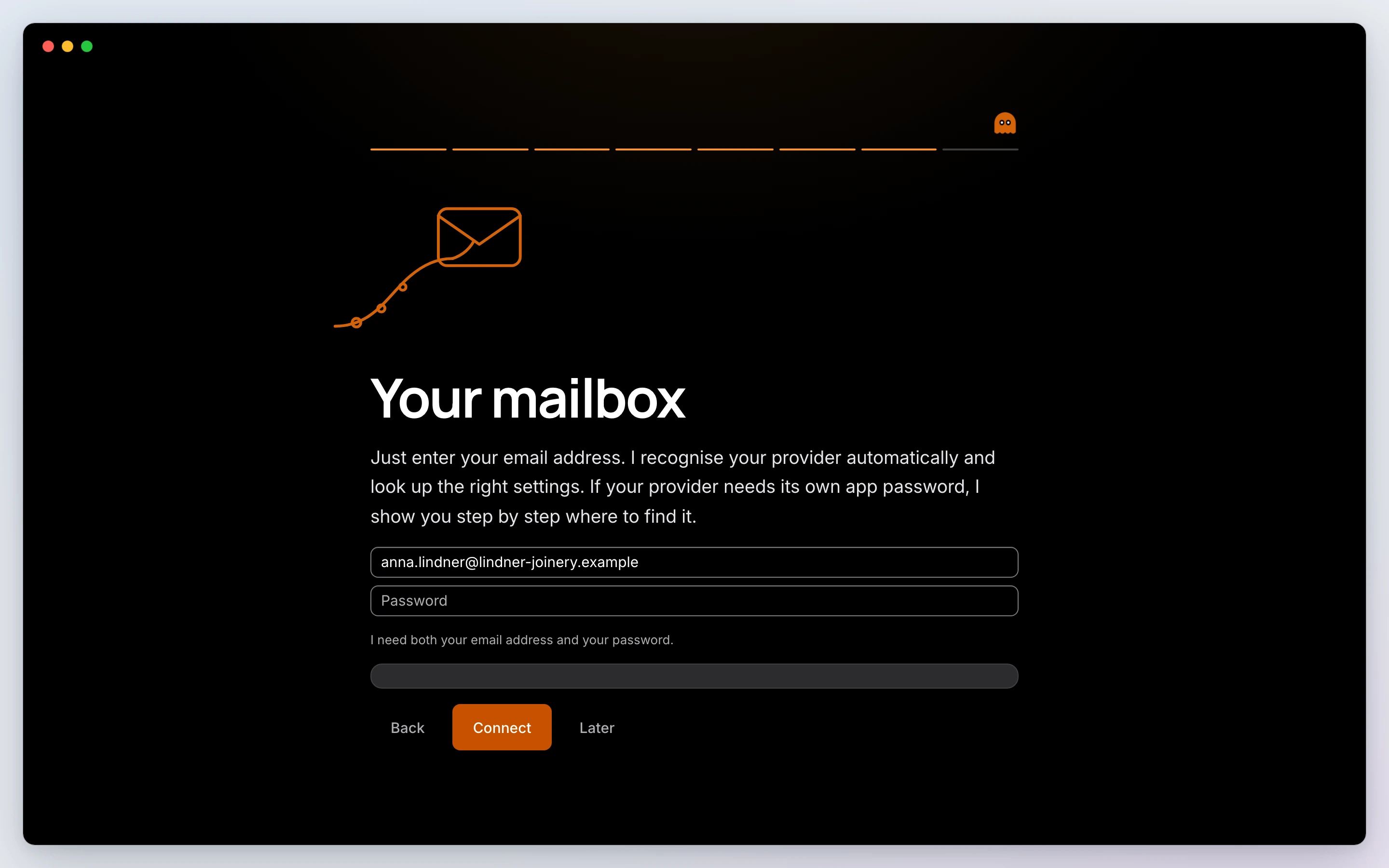
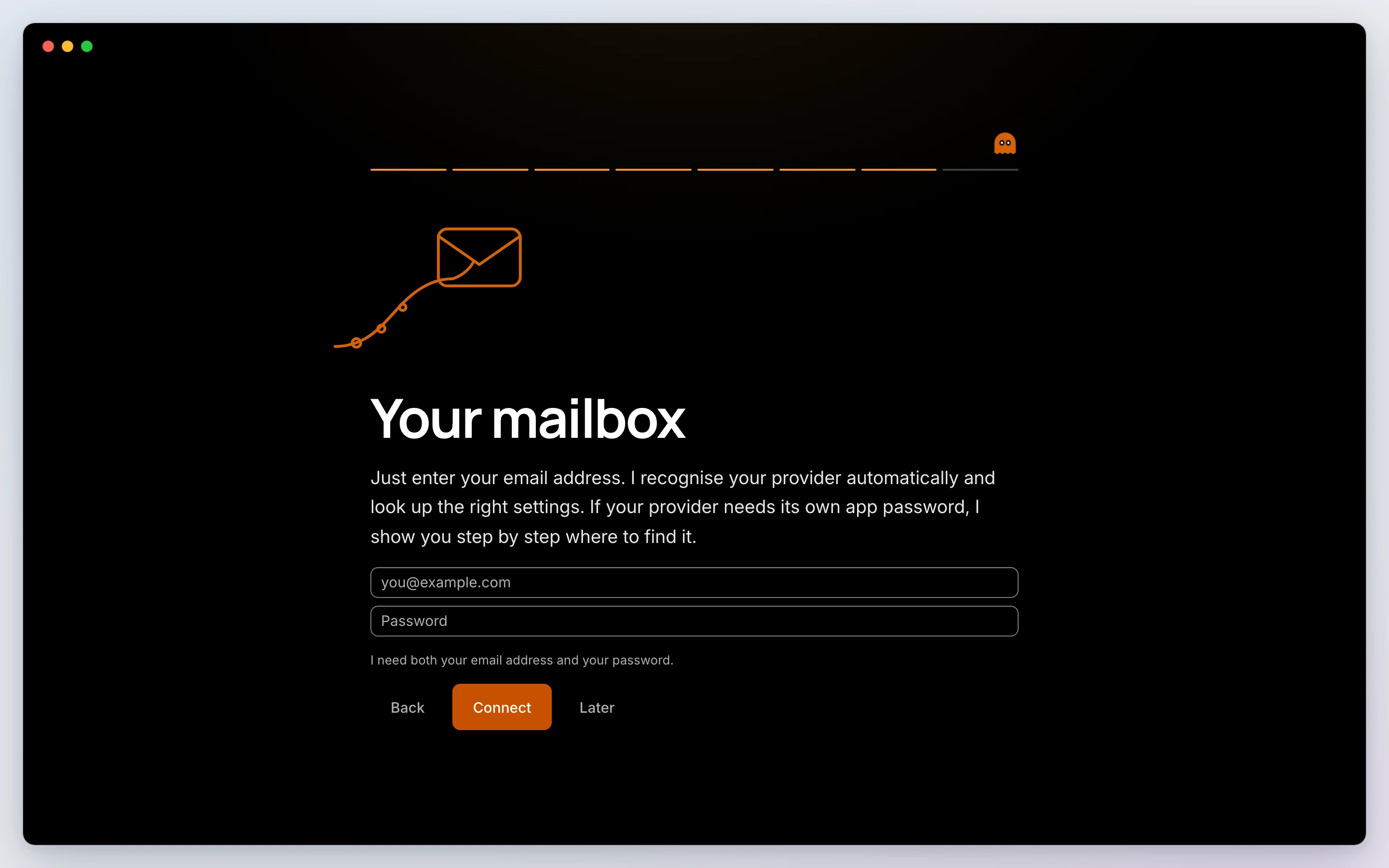
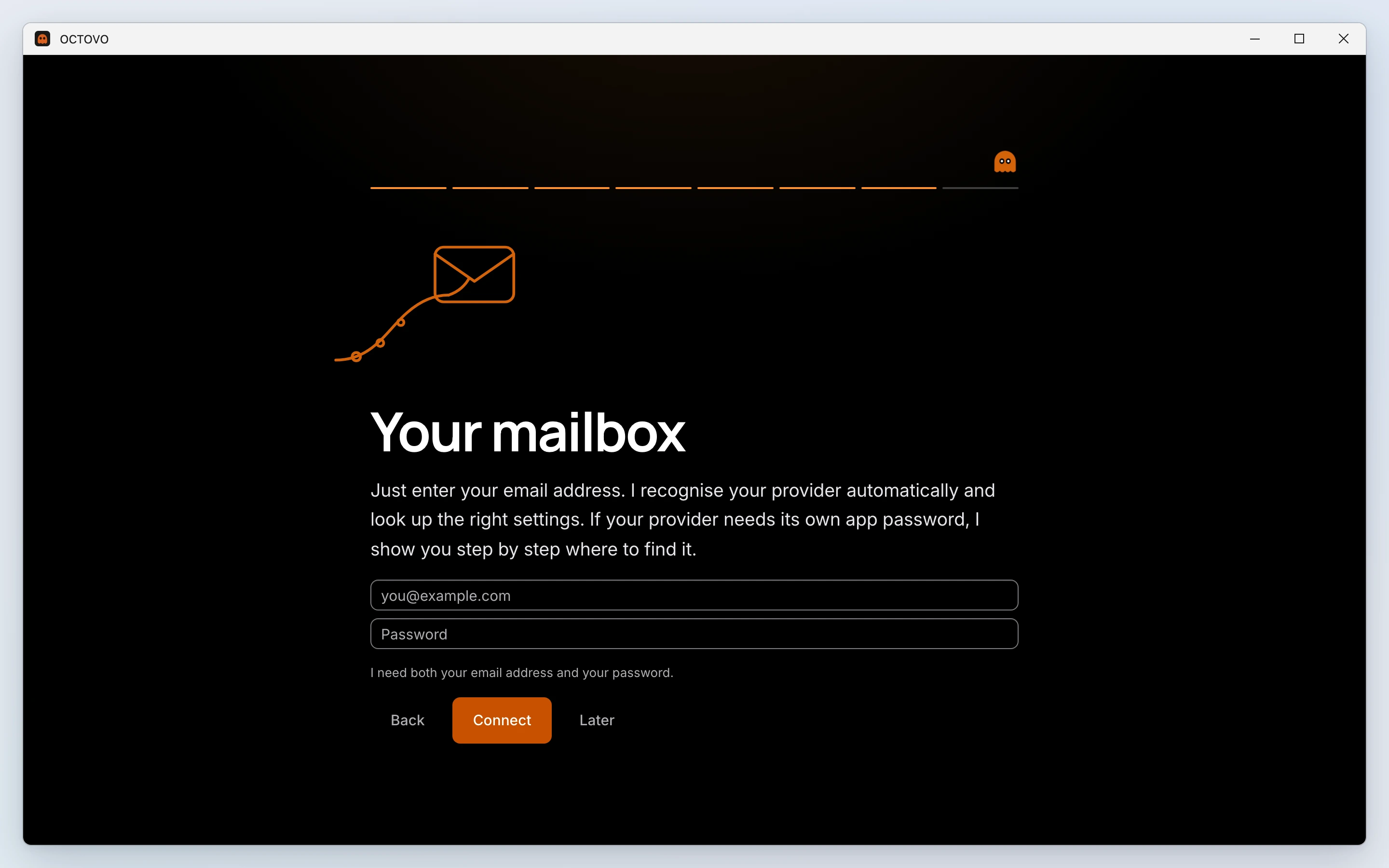
Enter your email address. The provider is recognised. If it needs an app password, the button opens the right page. For Microsoft you use “Sign in with Microsoft” in the browser.
What you see:
- Email address the address of your mailbox.
- Create app password opens your provider’s page for creating one.
- Sign in with Microsoft sign-in in the browser, no password in the app.
Giving consent
 Windows
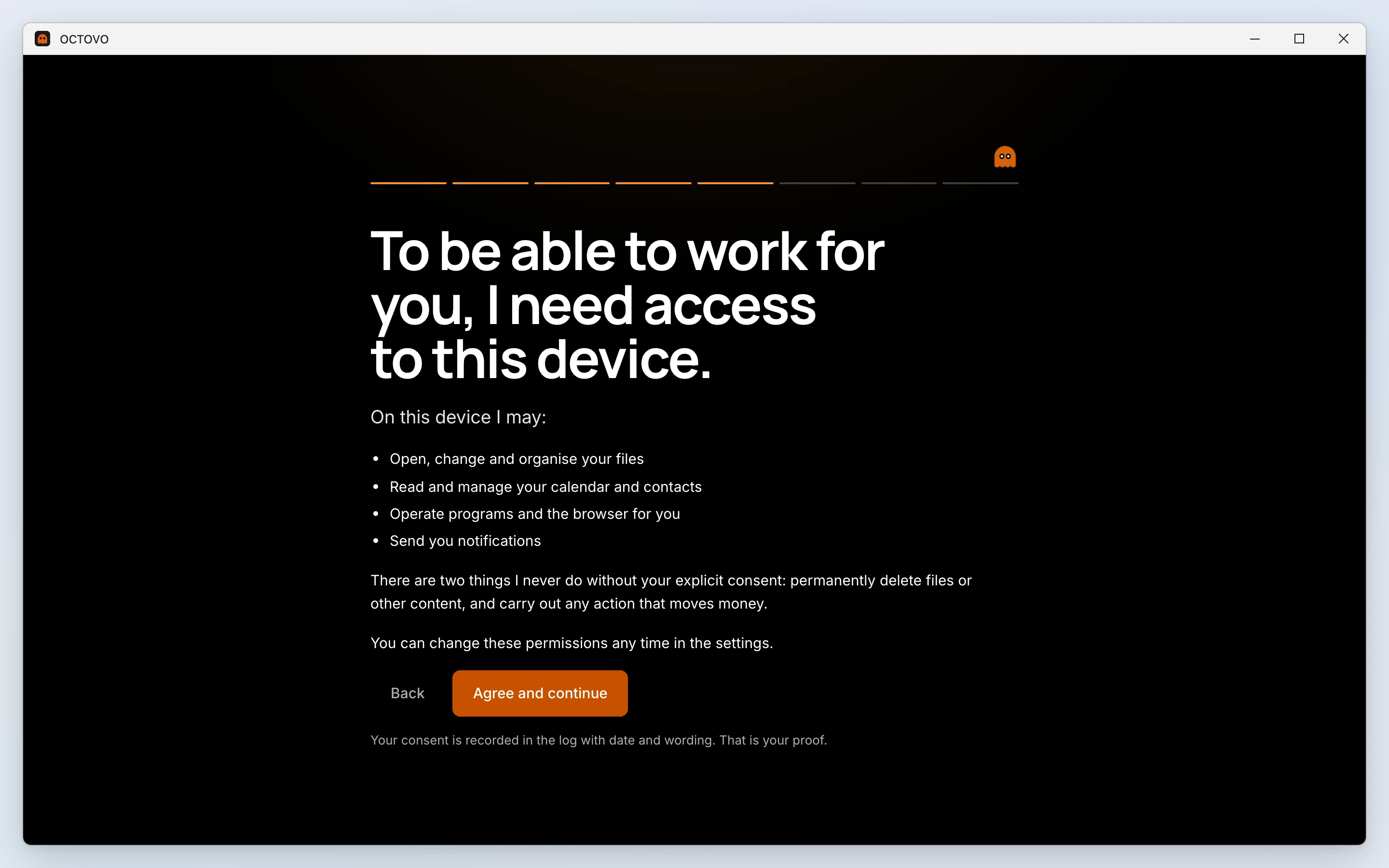
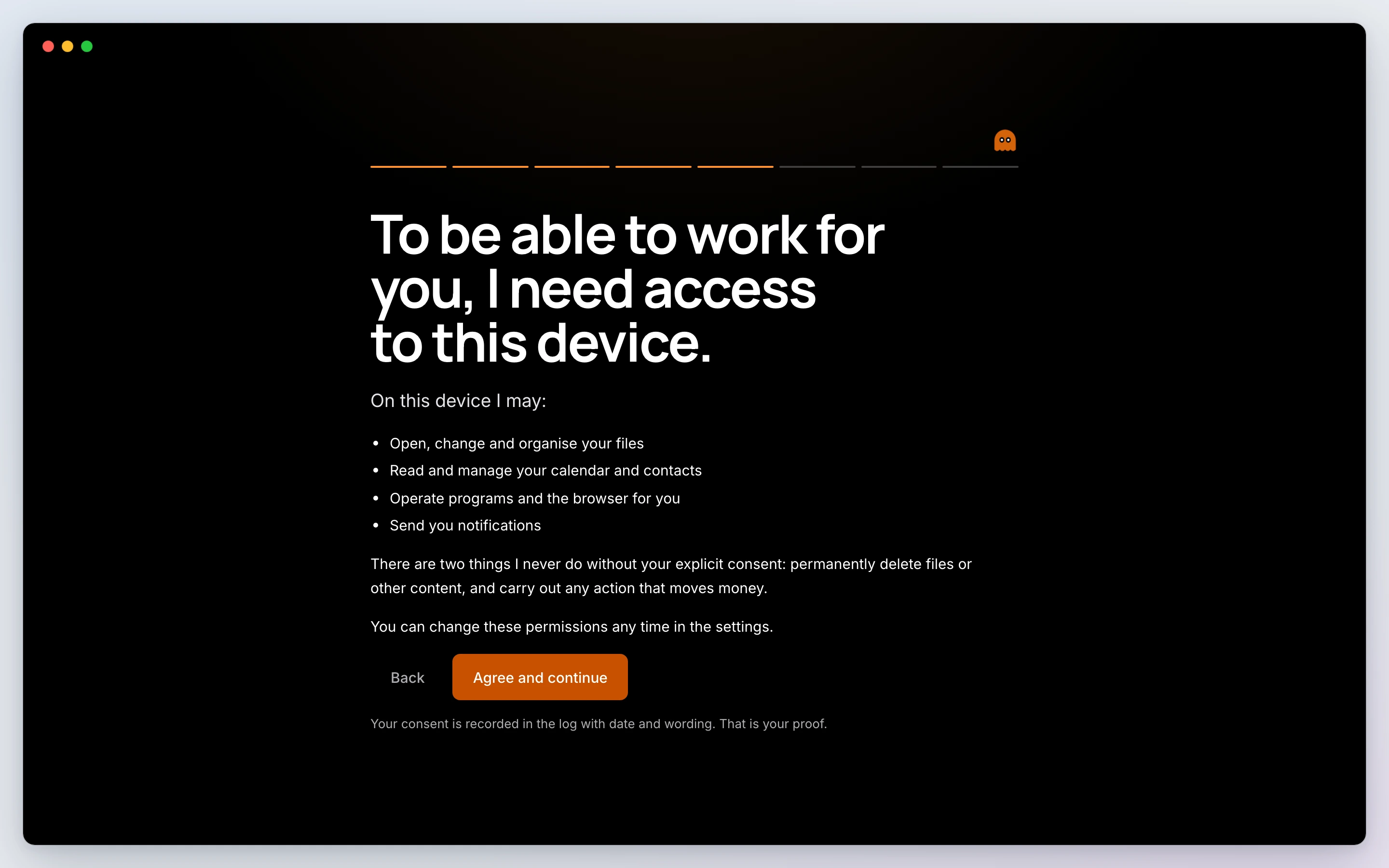
Your assistant shows what it may do on this device: work with files, use calendar and contacts, operate programs and the browser, show notifications. Deleting for good and anything involving money only happens with your explicit consent. Your consent is logged.
What you see:
- On this device I may: the four points you agree to.
- Agree and continue confirms and moves on.
A few questions about you
 Windows
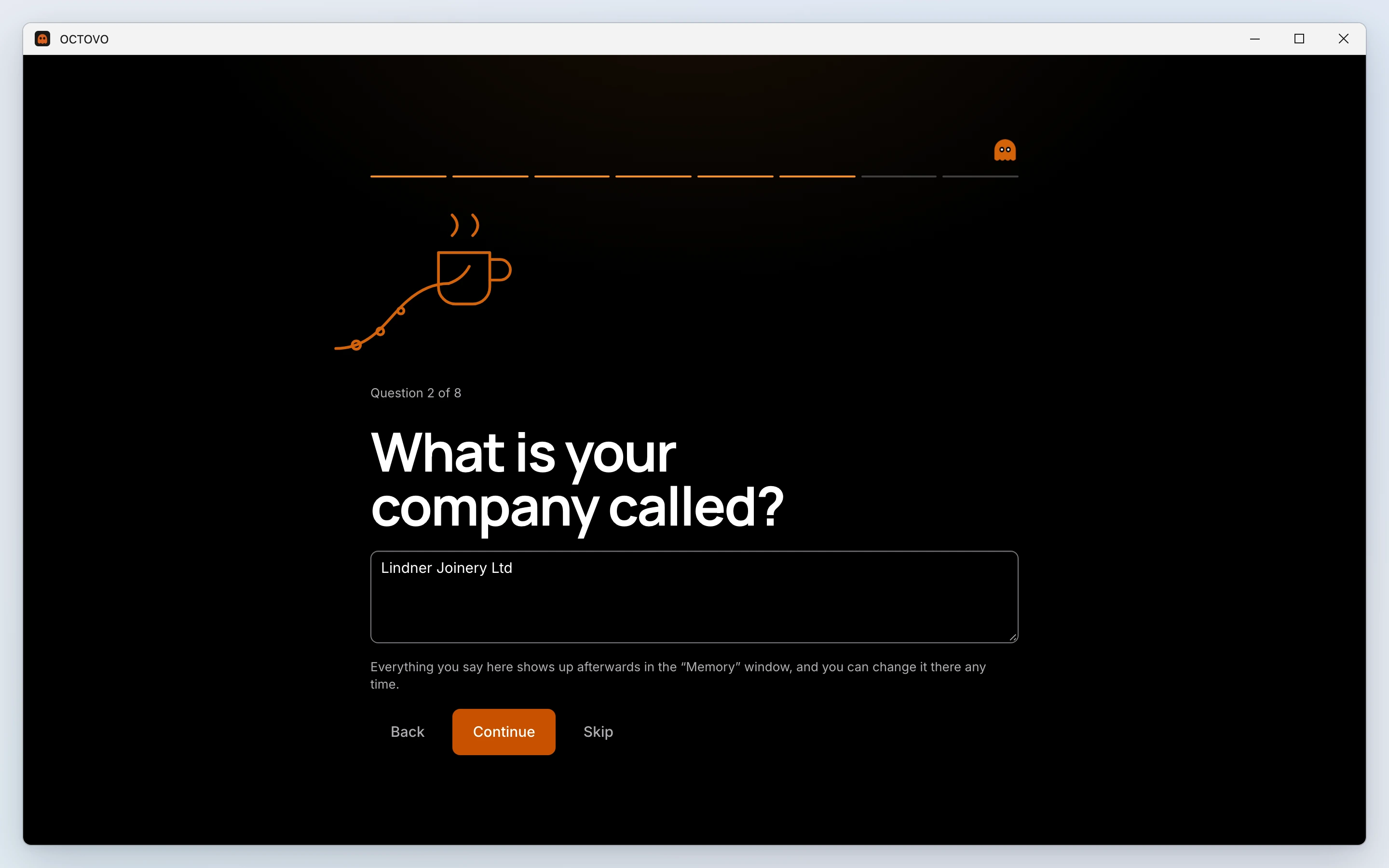
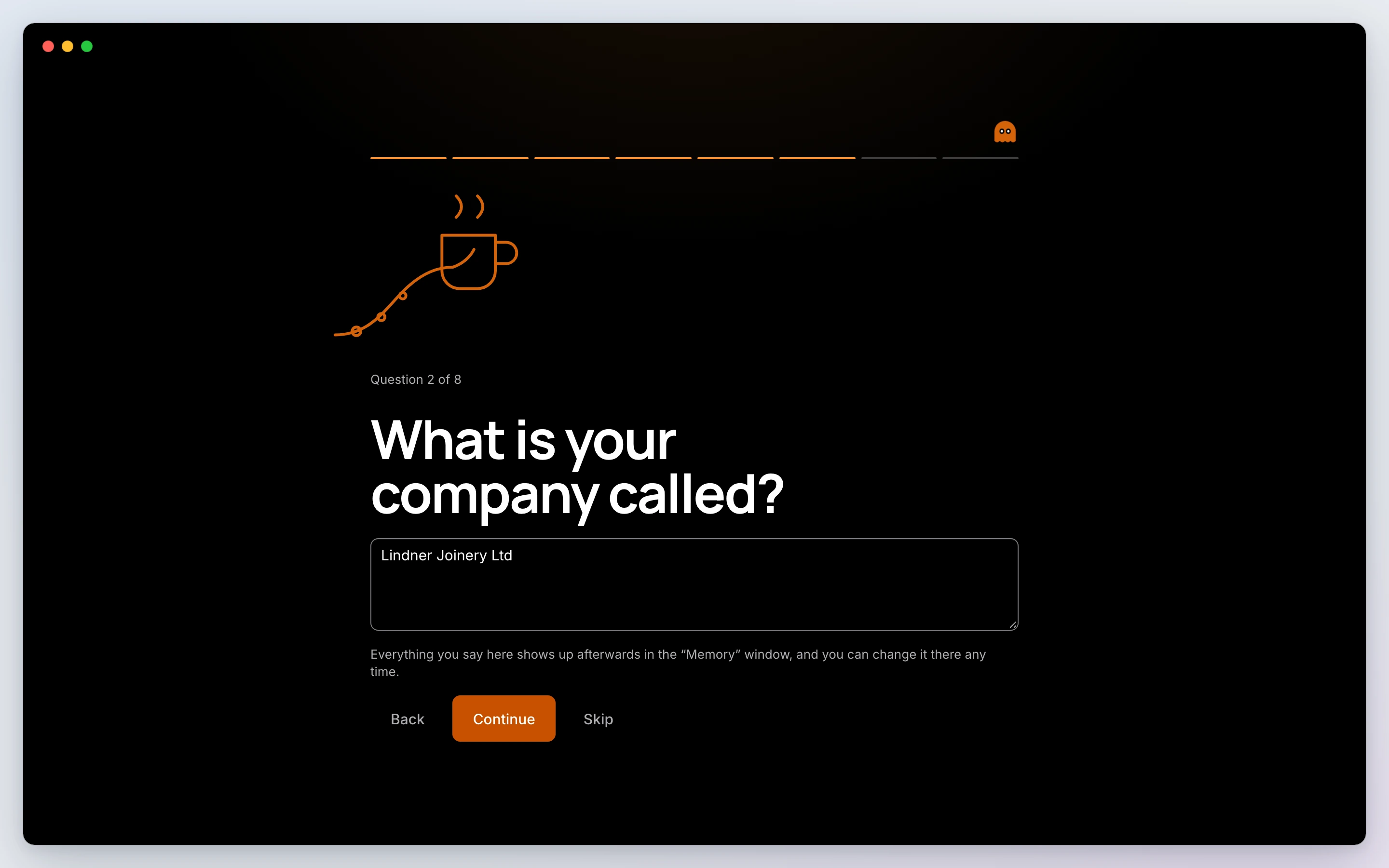
Your assistant asks about your job, company, location, current projects, your email signature, your tax adviser and whether you use the German small-business VAT rule (§ 19 UStG). The answers go into Memory, where you can change them at any time.
What you see:
- Answer field you answer in your own words.
- Later skips a question.
The first job
 Windows
Finally, your assistant suggests a first job that fits your answers.
What you see:
- Accept and start creates the job and starts it.
- Adjust in chat opens the suggestion in a conversation.
- Start without a task finishes the setup without a job.